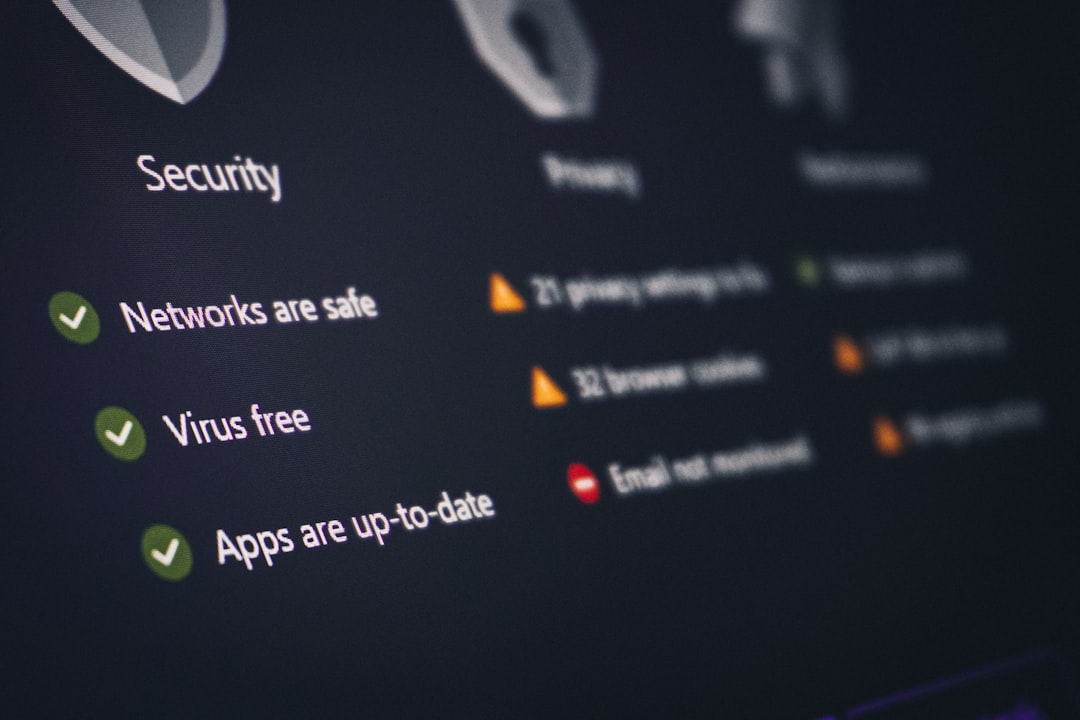
In today’s connected world, almost every device—from laptops and smartphones to servers and smart home systems—relies on network communication. While connectivity brings convenience and productivity, it also opens the door to cyber threats. That’s where firewalls come in. Proper firewall configuration is one of the most important steps you can take to protect your network, whether at home or in a business environment.
TLDR: A firewall acts as a security barrier between your trusted network and untrusted external networks like the internet. Configuring it correctly means defining rules that determine which traffic is allowed or blocked. Beginners should focus on understanding traffic types, ports, protocols, and rule order. With a few best practices and regular monitoring, even basic firewall configurations can dramatically improve security.
A firewall is essentially a traffic controller for your network. It monitors incoming and outgoing data packets and decides what to allow or block based on predefined rules. Understanding how to configure it properly ensures that legitimate traffic flows freely while malicious or unnecessary traffic is stopped in its tracks.
What Is a Firewall?
A firewall is either a hardware device, software application, or a combination of both that filters network traffic. It creates a protective boundary between:
- Your internal network (trusted)
- External networks such as the internet (untrusted)
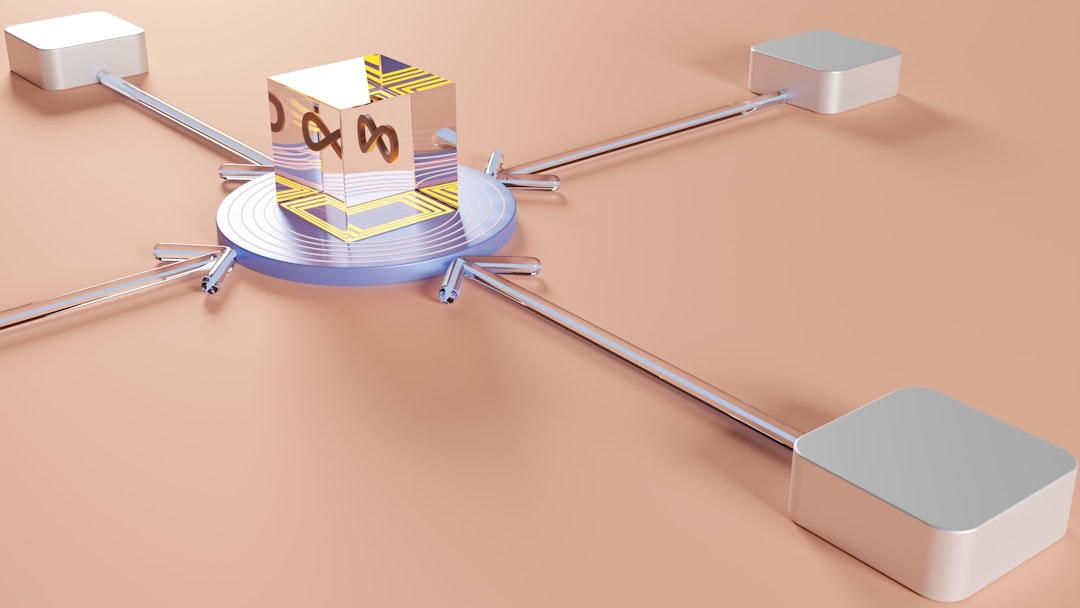
Firewalls operate based on a set of rules. These rules tell the firewall what to do when it encounters specific types of traffic. For example, it might allow web browsing traffic but block unauthorized remote login attempts.
Types of Firewalls
Before diving into configuration, it helps to understand the main types of firewalls:
- Packet-Filtering Firewalls: Inspect packets and block or allow them based on IP address, port, or protocol.
- Stateful Inspection Firewalls: Track active connections and make decisions based on context, not just individual packets.
- Application Layer Firewalls: Filter traffic by application type (e.g., HTTP, FTP).
- Next-Generation Firewalls (NGFW): Include advanced features like intrusion prevention and deep packet inspection.
For beginners, most home routers include a built-in stateful firewall that is sufficient when configured correctly.
Understanding the Basics of Firewall Rules
At the heart of firewall configuration are rules. Each rule typically contains:
- Source IP address (where traffic comes from)
- Destination IP address (where it’s going)
- Port number (which service is involved)
- Protocol (TCP, UDP, ICMP)
- Action (Allow or Deny)
For example, a simple rule might say:
Allow internal network (192.168.1.0/24) to access web servers on port 80 (HTTP) and 443 (HTTPS).
Firewall rules are processed in order. Once traffic matches a rule, the firewall performs the specified action and stops checking further rules. This makes rule order extremely important.
Common Ports You Should Know
When configuring a firewall, understanding common port numbers is crucial:
- 80 – HTTP (web traffic)
- 443 – HTTPS (secure web traffic)
- 22 – SSH (secure remote access)
- 21 – FTP (file transfer)
- 25 – SMTP (email sending)
- 3389 – RDP (remote desktop)
If you’re not using a service, it’s best practice to block its port. This is known as reducing the attack surface.
Steps to Configure a Basic Firewall
Let’s walk through a simplified beginner-friendly configuration process.
1. Change Default Credentials
Many firewall devices and routers come with default usernames and passwords. The first step is to change them to strong, unique credentials.
2. Update Firmware
Ensure your firewall software or router firmware is up-to-date. Updates often patch security vulnerabilities.
3. Set Default Deny Policy
A strong security stance is to:
- Deny all inbound traffic by default
- Allow only specific necessary services
This ensures that nothing unexpected gets through.
4. Configure Outbound Rules
Many beginners forget outbound traffic. Consider restricting:
- Unknown applications from accessing the internet
- Traffic to suspicious countries or IP ranges
5. Enable Logging and Alerts
Logs help you monitor suspicious activity. Enable logging for:
- Blocked connection attempts
- Administrative changes
- Repeated login failures
Firewall Configuration Best Practices
Even beginners can follow professional-grade best practices:
- Principle of Least Privilege: Allow only what is absolutely necessary.
- Segment Your Network: Separate guest Wi-Fi from your internal devices.
- Regularly Review Rules: Remove outdated or unused rules.
- Disable Unused Services: Turn off UPnP, Telnet, or other unnecessary features.
- Backup Configuration: Save your firewall settings in case of hardware failure.
Good firewall configuration is not a one-time task—it requires ongoing review and improvement.
Hardware vs Software Firewalls
Beginners often wonder whether they need a hardware firewall, software firewall, or both.
| Feature | Hardware Firewall | Software Firewall |
|---|---|---|
| Location | Between network and internet | Installed on individual devices |
| Protection Scope | Entire network | Single device |
| Performance Impact | Minimal device impact | Uses device resources |
| Best For | Homes and businesses | Extra endpoint protection |
For optimal security, many environments use both types together. The hardware firewall protects the perimeter, while software firewalls secure individual devices.
Understanding NAT and Port Forwarding
Most home firewalls use Network Address Translation (NAT). NAT allows multiple devices to share one public IP address. By default, NAT blocks unsolicited inbound traffic.
Port forwarding is when you deliberately allow external traffic to reach an internal device, such as a gaming console or web server.
Image not found in postmetaHowever, port forwarding can introduce risks. Only open ports when necessary, and close them when no longer needed.
Common Firewall Mistakes Beginners Make
- Allowing “Any to Any” rules: This defeats the purpose of a firewall.
- Ignoring outbound traffic: Malware often communicates outward.
- Overlapping or conflicting rules: Poor organization leads to confusion.
- Not testing rules: Always verify changes in a controlled way.
- Failing to monitor logs: You can’t respond to threats you don’t see.
Learning from these mistakes early can save significant time and prevent security incidents.
Testing Your Firewall Configuration
After configuring your firewall, test it:
- Use online port scanning tools to see which ports are open.
- Attempt connections from outside your network (if possible).
- Review firewall logs for unexpected allowed traffic.
If something appears open that shouldn’t be, adjust your rules immediately.
Why Firewall Configuration Matters More Than Ever
Cyberattacks are increasingly automated. Bots continuously scan the internet for open ports and vulnerable services. A poorly configured firewall is like leaving your front door unlocked in a busy city.
With proper configuration:
- You prevent unauthorized access.
- You reduce malware infections.
- You protect sensitive personal or business data.
- You gain visibility into network activity.
In essence, firewall configuration is not just a technical task—it’s a foundational cybersecurity practice.
Final Thoughts
Configuring a firewall may sound intimidating at first, but the core principles are straightforward: understand your traffic, allow only what you need, block everything else, and monitor continuously. By learning how firewall rules work and applying best practices, even beginners can establish strong network defenses.
Think of your firewall as a vigilant security guard. With clear instructions and regular supervision, it will quietly and effectively protect your digital environment around the clock.


