GIMP is one of the most popular free image editing programs in the world. If you have ever wanted to edit photos, create digital art, or design graphics without paying for expensive software, GIMP might be exactly what you need. It is powerful, flexible, and surprisingly fun to use. Best of all, it costs nothing.
TLDR: GIMP is a free, open source image editing program that works like a powerful alternative to Photoshop. It offers professional tools for photo editing, graphic design, and digital art. While the interface can feel a bit confusing at first, it becomes easier with practice. For a free tool, it delivers impressive results.
Now let’s break it all down in a simple way.
What Is GIMP?
GIMP stands for GNU Image Manipulation Program. The name may sound serious. But the software itself is very creative and flexible.
It is:
- Free to download and use
- Open source, meaning anyone can improve it
- Available for Windows, Mac, and Linux
- Used for photo editing, design, drawing, and more
Think of GIMP as a toolbox for images. Want to retouch a selfie? You can. Want to design a YouTube thumbnail? Easy. Want to draw digital art from scratch? That too.
It has been around since 1996. That means it is mature and well-tested. Over the years, developers and artists have improved it step by step.
What Can You Do With GIMP?
You can do a lot. Here are the main things people use GIMP for:
1. Photo Editing
This is the big one.
You can:
- Resize and crop photos
- Adjust brightness and contrast
- Remove red eye
- Retouch skin
- Erase backgrounds
- Add filters and effects
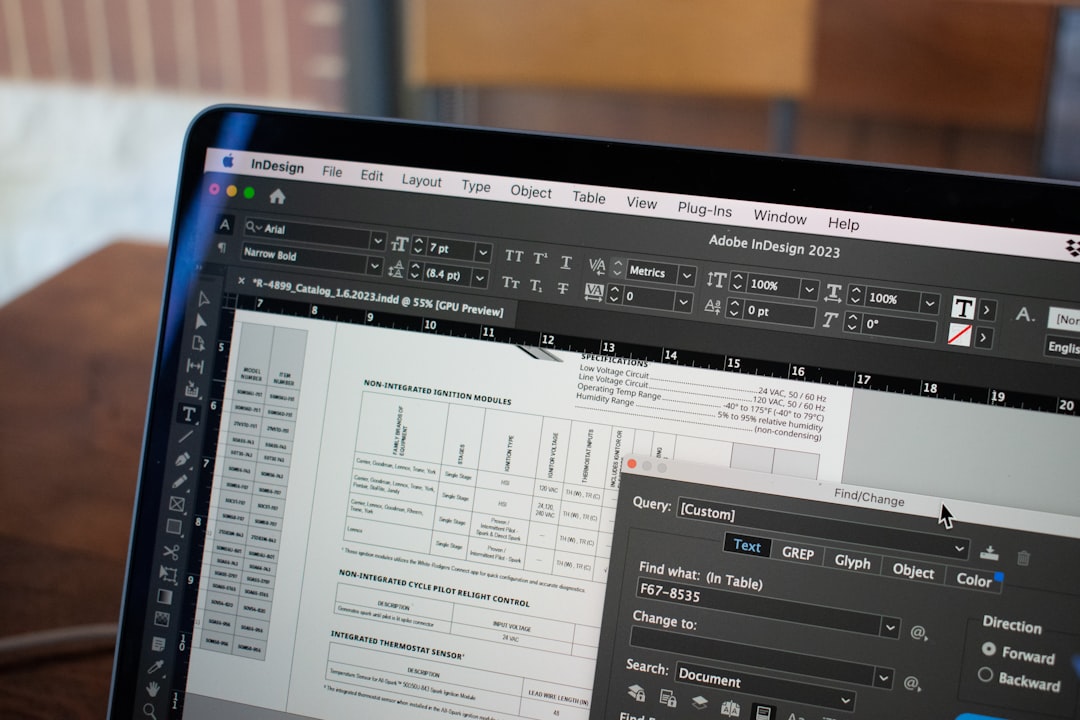
If you have used Photoshop before, many tools will feel familiar. There are layers, brushes, selection tools, and blending modes. You can even work with advanced masks.
For everyday photo fixes, GIMP is more than enough.
2. Graphic Design
Need a social media post? A banner? A poster?
GIMP can handle it.
You can:
- Add text with custom fonts
- Create shapes and icons
- Work with layers for complex designs
- Export files in many formats
It supports formats like JPEG, PNG, GIF, PSD, PDF, and more. This makes it flexible when sharing files.
3. Digital Drawing
If you own a drawing tablet, GIMP becomes even more exciting.
You can sketch, paint, and shade using:
- Custom brushes
- Pressure sensitivity
- Layer blending effects
- Texture overlays
While some artists prefer software made only for drawing, GIMP still does a very good job.
4. Image Manipulation
This is where GIMP shines.
You can combine multiple images into one scene. For example:
- Put yourself on a beach in Hawaii
- Add dramatic skies to boring landscapes
- Create fantasy-style artwork
With layers and masks, almost anything is possible.
Main Features Explained Simply
Let’s look at the key tools that make GIMP powerful.
Layers
Layers are like transparent sheets stacked on top of each other.
You can edit one layer without affecting the others. This makes your work safer and more flexible.
Selection Tools
These tools let you select specific parts of an image.
You can select:
- Rectangles
- Circles
- Freehand shapes
- Color-based areas
Once selected, you can edit only that area.
Brushes and Tools
GIMP comes with many built-in brushes. You can even download more online.
Some popular tools include:
- Clone Tool – copy one part of an image to another
- Healing Tool – fix small imperfections
- Smudge Tool – blend colors together
- Blur and Sharpen – control image detail
Filters and Effects
Want a vintage look? A blur effect? A cartoon style?
GIMP offers many built-in filters. You can also install plugins to add even more effects.
Is GIMP Easy to Use?
Here is the honest answer.
At first, it can feel confusing.
The interface looks busy. There are many buttons. Many panels. Many menus.
Image not found in postmetaBut do not worry.
After a few tutorials and some practice, things start to make sense. The tools always stay in the same places. Over time, you build muscle memory.
If you are a beginner, expect a small learning curve. If you stick with it, you will improve quickly.
How Does GIMP Compare to Photoshop?
This is a common question.
Let’s keep it simple.
Price
- GIMP: Free
- Photoshop: Paid subscription
Power
- Photoshop has more advanced features
- GIMP still covers most common needs
Ease of Use
- Photoshop feels more polished
- GIMP can feel less modern
Plugins and Community
- Both have strong communities
- GIMP’s open source nature allows community improvements
For professionals in large design studios, Photoshop may be the standard.
For students, hobbyists, small business owners, or curious creators, GIMP is often more than enough.
Pros and Cons
Pros
- Completely free
- No subscription required
- Powerful editing tools
- Works on multiple operating systems
- Large community support
Cons
- Interface can feel outdated
- Learning curve for beginners
- Not always fully compatible with complex PSD files
Every tool has trade-offs. The key question is simple. Does it do what you need?
Who Should Use GIMP?
GIMP is great for:
- Students learning design
- Bloggers editing photos
- Small business owners creating graphics
- Digital artists on a budget
- Anyone who loves free software
If you are just starting your creative journey, GIMP is a safe place to begin.
You can explore without pressure. You can experiment without paying monthly fees. That freedom feels good.
Tips for Beginners
Starting something new can be overwhelming. Here are a few simple tips:
- Watch beginner tutorials on video platforms
- Learn layers first – they are essential
- Practice on simple projects
- Use keyboard shortcuts to save time
- Do not try to learn everything at once
Small steps lead to big progress.
Customization and Plugins
One of GIMP’s biggest strengths is customization.
You can:
- Rearrange panels
- Change themes
- Add new brushes
- Install plugins for extra features
This flexibility makes GIMP feel personal. You can shape the workspace to match how you like to work.
Performance and System Requirements
GIMP is not very demanding.
It runs well on most modern computers. Even older systems can handle basic editing tasks.
However, very large files with many layers may slow things down. That is true for most graphic editing software.
Final Thoughts
So, what is the GIMP graphics program?
It is a powerful, free image editor. It is flexible. It is creative. It is built by a global community.
Is it perfect? No.
Is it impressive for a free tool? Absolutely.
If you are curious about graphic design or photo editing, GIMP is worth trying. You risk nothing. You might discover a new hobby. Or even a career path.
Download it. Open a photo. Click around. Experiment.
Creativity starts with a single step. And GIMP makes that step completely free.


