Upgrading from a traditional hard disk drive (HDD) to a solid-state drive (SSD) is one of the most effective ways to improve the performance of a Windows 10 computer. Faster boot times, quicker application launches, and improved system responsiveness are just a few of the benefits. However, many users hesitate because they are concerned about losing important data during the transfer process. The good news is that, with the right preparation and tools, you can migrate Windows 10 from an HDD to an SSD safely and without reinstalling your system.
TLDR: You can transfer Windows 10 from an HDD to an SSD without losing data by cloning your existing drive using reliable disk migration software. Start by backing up your files, properly connecting the SSD, and ensuring it has enough capacity. Use trusted tools like Macrium Reflect, Acronis, or Samsung Data Migration to clone your drive. Once complete, change the boot order in BIOS and verify the migration.
Why Upgrade from HDD to SSD?
Before diving into the process, it’s important to understand why this upgrade matters. Traditional HDDs rely on spinning disks and moving parts, making them significantly slower and more prone to mechanical failure. SSDs, on the other hand, use flash memory with no moving components.
- Faster boot times – Windows 10 can load in seconds rather than minutes.
- Improved system responsiveness – Applications open almost instantly.
- Greater durability – SSDs are more resistant to physical shock.
- Lower power consumption – Especially important for laptops.
If your system feels sluggish but you are not ready to replace the entire PC, upgrading to an SSD is often the most cost-effective improvement available in 2026.
What You Need Before You Start
Preparation reduces risk and ensures a smooth transfer. Before migrating Windows 10, make sure you have the following:
- A new SSD with equal or larger capacity than your used HDD space.
- A SATA to USB adapter or an extra internal drive slot.
- Disk cloning software.
- An external drive for backup (recommended).
Always back up your important data before starting. While cloning is generally safe, unexpected interruptions like power loss can cause corruption.
Step-by-Step Guide: How to Transfer Windows 10 from HDD to SSD
1. Back Up Your Data
Even though the process is designed to preserve data, you should never skip backup. Use:
- Windows File History
- Cloud storage solutions
- An external hard drive
This ensures that even in worst-case scenarios, your files remain secure.
2. Connect the SSD to Your Computer
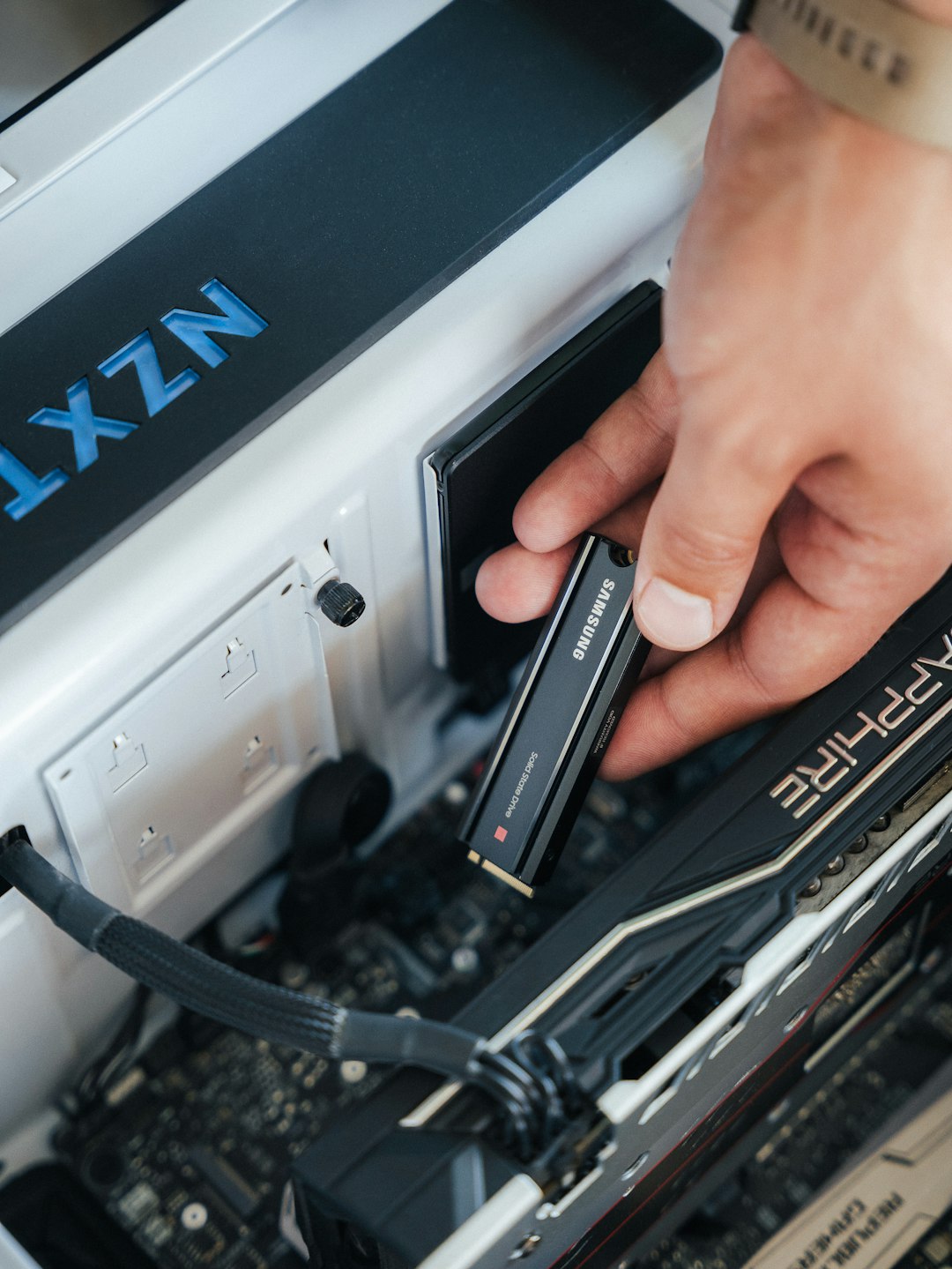
If you are using a desktop, install the SSD internally via SATA or NVMe. For laptops or systems with a single drive bay, use a SATA-to-USB adapter to connect the SSD externally during the cloning process.
Once connected:
- Open Disk Management.
- Initialize the SSD (choose GPT for modern systems with UEFI).
- Ensure the drive appears and shows as unallocated space.
3. Choose Reliable Cloning Software
Using reliable software is critical. Below are some of the most trusted tools in 2026:
- Macrium Reflect
- Acronis Cyber Protect Home Office
- EaseUS Todo Backup
- Samsung Data Migration (for Samsung SSDs)
Comparison Chart of Popular Disk Cloning Tools (2026)
| Software | Ease of Use | SSD Optimization | Free Version | Best For |
|---|---|---|---|---|
| Macrium Reflect | High | Yes | Yes (limited) | Advanced users |
| Acronis | Very High | Yes | No (trial only) | Full system protection |
| EaseUS Todo Backup | High | Yes | Yes | Beginners |
| Samsung Data Migration | Very High | Yes | Yes | Samsung SSD owners |
4. Clone the HDD to the SSD
The exact steps vary slightly depending on the software, but generally follow this process:
- Launch the cloning software.
- Select your current HDD as the source disk.
- Select the new SSD as the destination disk.
- Enable SSD alignment (if available).
- Start the cloning process.
The cloning process can take anywhere from 20 minutes to several hours depending on drive size and speed.
5. Change Boot Order in BIOS
Once cloning is complete:
- Shut down your computer.
- Physically replace the HDD with the SSD (if necessary).
- Turn on the PC and enter BIOS/UEFI (usually by pressing F2, DEL, or F12).
- Set the SSD as the primary boot device.
- Save and exit.
If everything was cloned correctly, Windows 10 should boot exactly as before—but noticeably faster.
6. Verify Data and Format the Old HDD
After successful boot-up:
- Check personal files.
- Open several applications.
- Ensure system settings are intact.
Once confirmed, you may format the old HDD and use it as additional storage.
Common Mistakes to Avoid
Even experienced users can encounter issues. Avoid these frequent errors:
- Cloning to a smaller SSD without resizing partitions
- Interrupting the cloning process
- Forgetting to change boot priority
- Not enabling AHCI mode
Additionally, ensure your SSD firmware is updated after installation for optimal reliability and performance.
Can You Transfer Windows 10 Without Cloning?
Yes, but it is more time-consuming. Alternatives include:
- Clean installation of Windows 10
- System image backup and restore
A clean install provides maximum performance but requires reinstalling applications and restoring files manually. Cloning remains the most efficient method when the goal is preserving your current setup.
How to Ensure Maximum SSD Performance
After migration, optimize your system:
- Confirm TRIM is enabled (run “fsutil behavior query DisableDeleteNotify”).
- Disable scheduled disk defragmentation for SSD.
- Keep at least 15–20% free space on the SSD.
- Enable write caching (if supported).
Windows 10 typically handles most of these optimizations automatically, but it is wise to confirm them.
Troubleshooting Common Issues
SSD Not Showing as Boot Option
Check your BIOS mode (UEFI vs Legacy) and ensure the partition style matches (GPT for UEFI, MBR for Legacy).
Windows Fails to Boot
Use a Windows 10 installation USB and run Startup Repair.
Cloned Drive Shows Wrong Size
Open Disk Management and extend the primary partition to use unallocated space.
Is It Safe to Migrate Windows 10 in 2026?
Yes. The process of disk cloning is mature and stable. Modern SSDs include built-in wear leveling, advanced controllers, and improved endurance. Provided you use reliable software and follow structured steps, data loss risk is extremely low.
Businesses and IT professionals regularly clone drives during hardware upgrades. With careful preparation, home users can achieve the same professional results.
Final Thoughts
Transferring Windows 10 from an HDD to an SSD without losing data is entirely achievable with the right preparation and trustworthy software. The key steps are simple: back up your files, properly connect the SSD, clone the drive using reliable software, adjust boot settings, and verify your data.
The result is a significantly faster and more responsive system without the inconvenience of reinstalling Windows or your applications. In 2026, there is little reason to continue using an HDD as your primary system drive. Upgrading to an SSD is not just an improvement—it is a practical necessity for maintaining performance, productivity, and system reliability.


