
So you open Claude, ready to work, and boom — you see the dreaded message: “This isn’t working right now.” Ugh. Not helpful. Not specific. Just… vague. But don’t worry. This error is common, and in most cases, it’s quick and easy to fix.
Let’s break it down and get you back to chatting in no time.
TL;DR: If Claude says “This isn’t working right now,” it’s usually a server issue, internet hiccup, browser glitch, or temporary overload. Refresh the page. Check your connection. Clear cache. Try another browser or device. If all else fails, wait a bit — the problem is often on the server side.
Why This Error Happens
Before jumping into fixes, it helps to know what’s going on.
The message “This isn’t working right now” is a general error. That means it doesn’t point to one exact cause. Instead, it acts like a catch-all warning.
Common reasons include:
- Server overload
- Internet instability
- Browser cache issues
- Extension conflicts
- Temporary system glitches
Now let’s fix it.
1. Refresh the Page (Yes, Really)
It sounds basic. But it works surprisingly often.
Web apps can momentarily lose connection to servers. When that happens, the system throws up a generic error message.
Try this first:
- Click the refresh button
- Or press Ctrl + R (Windows)
- Or Cmd + R (Mac)
Still not working? Close the tab completely. Open a new one. Then log back in.
Why this works:
Refreshing forces your browser to request a new connection. If the issue was minor or temporary, you’re back in business.
If it doesn’t work, don’t panic. We’re just getting started.
2. Check Your Internet Connection
This one is sneaky.
Your internet might look connected. But it could be unstable. Even tiny connection drops can cause Claude to fail.
Quick checks:
- Open another website
- Run a speed test
- Try streaming a short video
If things load slowly, your internet may be the culprit.
Fix attempts:
- Restart your router
- Switch from WiFi to wired connection
- Turn WiFi off and back on
- Move closer to your router
Using public WiFi? That can also cause instability. Try switching to mobile data temporarily.
Pro tip: VPNs sometimes interfere with AI platforms. If you’re using one, turn it off and test again.
3. Clear Your Browser Cache
Your browser stores temporary files. That’s called cache.
Most of the time, it helps websites load faster. But sometimes, it stores outdated data. And that can break things.
When Claude updates its system, old cached files might conflict with the new version.
To clear cache (Chrome example):
- Click the three dots (top right)
- Go to Settings
- Click Privacy and Security
- Select Clear browsing data
- Choose Cached images and files
- Click Clear data
Then restart your browser completely.
Important: You don’t need to delete passwords or history. Just cached files will do.
This fix alone solves the problem for many users.
4. Disable Extensions (They’re Sneaky)
Browser extensions are great. Ad blockers. Privacy tools. Automation plugins.
But they can sometimes break complex apps like Claude.
Extensions may:
- Block scripts
- Modify web requests
- Interrupt secure connections
That leads to… you guessed it. The error message.
To test this:
- Open an Incognito or Private browsing window
- Log into Claude there
Incognito mode usually disables extensions by default.
If Claude works in Incognito, you’ve found your problem.
Next step:
Disable extensions one by one. Refresh after each. When Claude starts working, you’ve identified the troublemaker.
Common offenders:
- Aggressive ad blockers
- Script blocking tools
- Privacy shields
Once identified, you can:
- Remove it
- Whitelist Claude
- Or keep it disabled when using AI tools
5. Check If Claude Is Down
Sometimes… it’s not you.
Servers go down. Systems get overloaded. Maintenance happens.
If too many users access Claude at once, temporary outages can occur.
How to check:
- Visit a status page for service updates
- Check social media for outage reports
- Search “Claude down right now”
If many people report the same issue, you can relax.
That means the problem is on the server side.
In this case, the only real solution is:
Wait 10–30 minutes and try again.
Most outages are short.
Bonus Fixes (If You’re Still Stuck)
If the main five didn’t solve it, try these extra tricks.
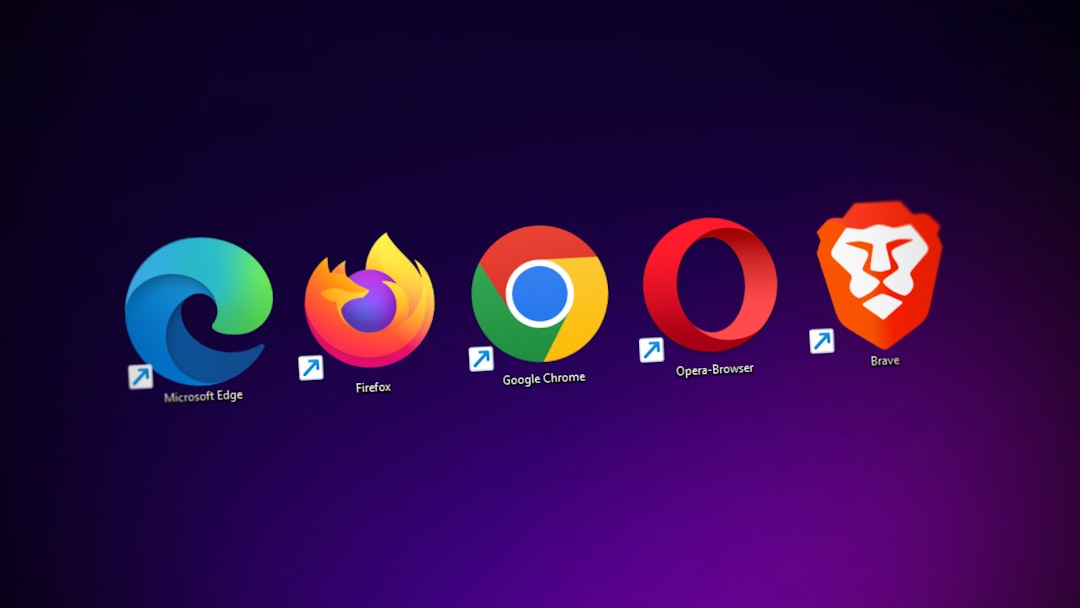
Switch Browsers
If you’re on Chrome, try Firefox.
If you’re on Safari, try Edge.
Different browsers handle scripts differently.
Switch Devices
Try your phone. Or a tablet. Or another computer.
If it works elsewhere, your original device likely has a local issue.
Log Out and Log Back In
Session tokens can expire or corrupt. Logging out refreshes your session.
Restart Your Device
Yes, the oldest trick in tech support.
And yes, it still fixes weird background conflicts.
How to Prevent It in the Future
You can’t prevent every error. But you can reduce the odds.
Good habits:
- Keep your browser updated
- Limit unnecessary extensions
- Maintain stable internet
- Avoid running 40 tabs at once
- Restart your browser occasionally
Think of it like digital hygiene.
Clean system. Smooth performance.
When to Contact Support
If the issue:
- Lasts more than a few hours
- Only happens on your account
- Shows additional error codes
Then it may be account-specific.
In that case, contacting support is your best move.
Provide:
- Screenshots
- Your device type
- Your browser version
- The exact error message
The more details, the faster they can help.
Final Thoughts
Seeing “This isn’t working right now” can feel frustrating. Especially when you’re mid-task.
But here’s the good news:
Most causes are simple. Most fixes are fast.
Start small. Refresh.
Check internet.
Clear cache.
Disable extensions.
Confirm server status.
One of these steps usually does the trick.
And if not? A short break while servers stabilize isn’t the worst thing in the world.
Technology hiccups happen. But now you know exactly what to do when they do.
Back to chatting. 🚀


