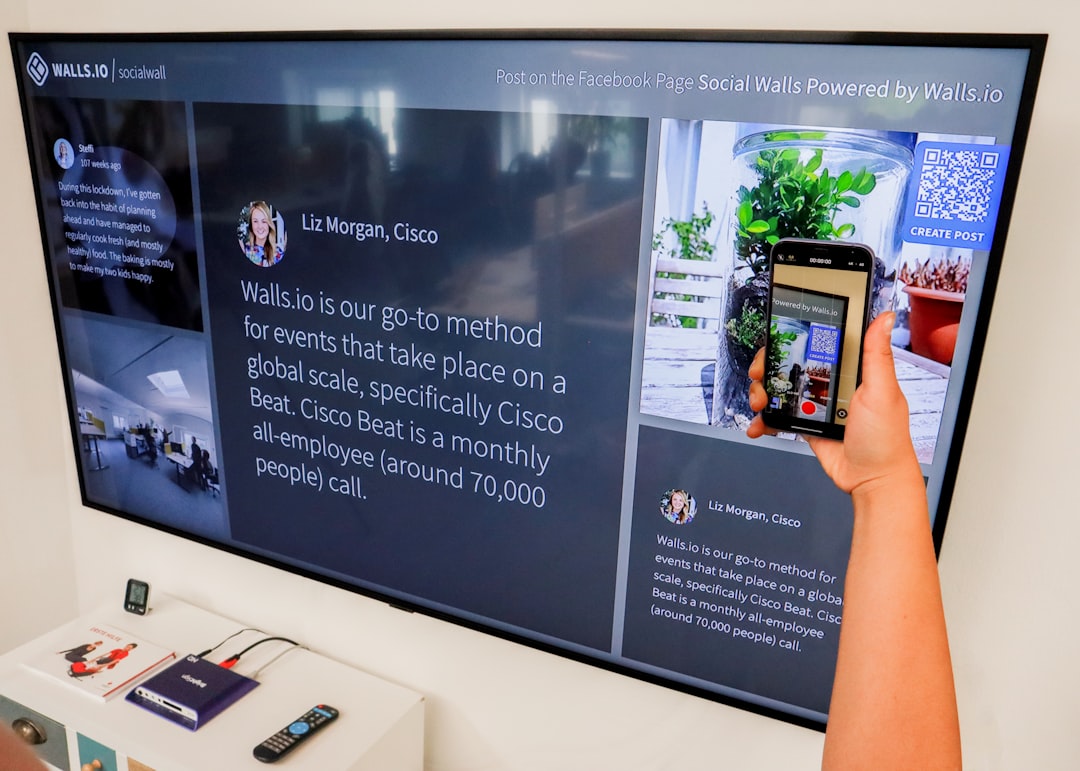
Modern classrooms and collaborative workspaces increasingly rely on wireless technology to keep lessons interactive and efficient. One of the tools that has transformed the way educators and professionals share content is Promethean Screen Share. Designed to work seamlessly with Promethean interactive panels, this feature allows users to mirror their device screens without cables, enhancing flexibility and engagement in real time.
TLDR: Promethean Screen Share allows users to wirelessly mirror their device screens to a Promethean interactive display. It works across multiple platforms including Windows, macOS, Chrome OS, iOS, and Android. Setup is simple: connect to the same network, access the Screen Share app, and follow on-screen pairing instructions. With built-in collaboration features and intuitive controls, it makes presenting and teaching smoother and more dynamic.
In this step-by-step guide, we will explore how Promethean Screen Share works, how to set it up, and how to use it effectively in classrooms, meeting rooms, and training environments.
Promethean Screen Share is a wireless screen mirroring solution integrated into Promethean ActivPanel displays. It enables users to project content from laptops, smartphones, and tablets directly onto the interactive panel without the need for HDMI cables or physical adapters.
This functionality supports:
- Real-time mirroring of device screens
- Multiple device connections at once
- Cross-platform compatibility
- Interactive collaboration via the ActivPanel
It’s designed to reduce setup time and eliminate clutter, while encouraging participation from multiple users during presentations or lessons.
At its core, Promethean Screen Share uses wireless display technology over a shared network. Both the ActivPanel and the connecting device must be on the same wired or wireless network. Once connected, the system allows users to transmit audio and video signals wirelessly in near real time.
The process involves:
- The ActivPanel broadcasting availability via the Screen Share app.
- The user’s device detecting the panel.
- A secure pairing process using a code or confirmation method.
- Screen mirroring beginning instantly once authenticated.
This configuration ensures both ease of use and data security, which is especially important in school and corporate networks.
Step 1: Connect to the Same Network
The first and most important step is ensuring that both the ActivPanel and your device are connected to the same Wi-Fi or local network.
- On the ActivPanel, access the network settings.
- Confirm it is connected via Wi-Fi or Ethernet.
- On your laptop, tablet, or phone, connect to that same network.
If devices are on different networks, Screen Share will not detect the panel.
Next:
- Tap the Unified Menu on the ActivPanel.
- Select Screen Share.
The display will show:
- The panel’s name
- Connection instructions
- A QR code or pairing code (depending on configuration)
This screen acts as the central hub for all incoming screen-sharing requests.
Image not found in postmetaStep 3: Connect from Your Device
The connection method varies slightly depending on your device type.
For Windows Devices
- Press Windows + K.
- Select the ActivPanel from the list of available displays.
- Enter the pairing code if prompted.
For macOS Devices
- Open Control Center or click Screen Mirroring.
- Select the ActivPanel (if AirPlay supported).
- Enter the code displayed on the panel.
For Chromebooks
- Install or open the Screen Share application (if required by admin).
- Select the panel device name.
- Confirm pairing.
For iOS and Android Devices
- Open Screen Mirroring or Smart View.
- Select the ActivPanel.
- Enter the security code shown.
Within seconds, your screen content will appear on the ActivPanel.
Once connected, users can:
- Switch between presenters
- Display multiple screens (if enabled)
- Pause sharing
- Disconnect from the session
Teachers often use this feature to allow students to present work directly from their devices without walking to the front of the classroom.
Promethean Screen Share isn’t just basic mirroring. It includes features that enhance usability and engagement.
1. Multi-Device Collaboration
In collaborative settings, multiple participants can connect at the same time. Some configurations allow for split-screen viewing, enabling comparisons between projects or shared group work.
2. Cross-Platform Compatibility
Unlike some proprietary systems, Screen Share works across:
- Windows
- macOS
- Chrome OS
- iOS
- Android
This flexibility makes it ideal for Bring Your Own Device (BYOD) environments.
3. Secure Pairing Controls
Security is handled through:
- On-screen pairing codes
- Network-based restrictions
- Administrative controls
Administrators can limit who connects, ensuring that only authorized users can mirror their screens.
4. Touchback Control (When Supported)
In some configurations, users can control their connected device directly from the ActivPanel touchscreen. This is especially useful during presentations when the presenter wants to move around the room.

Common Troubleshooting Steps
Like any wireless technology, occasional issues may arise. Here are some quick fixes:
Problem: Device Cannot Find the Panel
- Confirm both devices are on the same network.
- Restart the Screen Share app.
- Check network firewall restrictions.
Problem: Lag or Poor Video Quality
- Reduce network congestion.
- Switch to a wired connection for the panel if possible.
- Limit the number of simultaneous connections.
Problem: Pairing Code Not Working
- Refresh the Screen Share session.
- Ensure the code has not expired.
- Disconnect previous connections before retrying.
In most cases, restarting both devices resolves temporary glitches.
Best Practices for Smooth Screen Sharing
To maximize performance and engagement:
- Ensure strong Wi-Fi coverage in the room.
- Update ActivPanel firmware regularly.
- Keep device operating systems current.
- Disconnect unused devices during presentations.
Planning ahead helps avoid technical interruptions during important lessons or meetings.
How It Enhances Teaching and Presentations
Promethean Screen Share isn’t just about convenience—it reshapes classroom and meeting dynamics.
In educational settings, it:
- Encourages student participation
- Reduces downtime between presenters
- Supports collaborative group activities
- Allows instant display of digital work
In corporate environments, it:
- Speeds up meeting transitions
- Supports brainstorming sessions
- Enables flexible seating arrangements
- Reduces cable clutter
By removing physical barriers, presenters can move freely, and collaboration becomes more spontaneous.
One of the major strengths of the system is its simplicity. The process is intuitive enough that even users unfamiliar with interactive displays can connect within minutes.
Once the network is configured correctly, daily use requires only:
- Opening Screen Share.
- Selecting the panel on your device.
- Entering a code.
Because the instructions are shown directly on the ActivPanel screen, users rarely need external guidance.
Final Thoughts
Promethean Screen Share offers a practical and powerful solution for modern collaboration. By enabling wireless mirroring across multiple platforms, it simplifies presentations while promoting interactive engagement. Whether used in classrooms to empower students or in boardrooms to streamline meetings, the system balances ease of use, security, and versatility.
If your goal is to create a more dynamic and flexible learning or meeting environment, understanding how Promethean Screen Share works is the first step. With minimal setup and broad compatibility, it turns any connected device into a presentation tool—no cables required.


