Effective lesson planning is one of the most important responsibilities in the teaching profession. Digital platforms such as Planbook streamline this process, offering educators structured tools, alignment features, and cloud-based accessibility. However, to take full advantage of these features, teachers must understand how to log in securely and navigate the system efficiently. This guide offers a detailed overview of the Planbook login process and explains how to access and utilize its lesson planning tools effectively.
TLDR: Planbook provides teachers with a secure, cloud-based lesson planning system accessible through its web platform. To access its tools, educators must log in via their registered email and password or through integrated services such as Google. Once inside, users can create, organize, and share standards-aligned lesson plans across devices. Understanding account setup, troubleshooting, and navigation ensures smooth access to all core features.
Understanding Planbook and Its Role in Education
Planbook is an online lesson planning platform designed specifically for educators. It allows teachers to create detailed, organized lesson plans that align with state or district standards. Because it is cloud-based, teachers can access their plans from multiple devices without worrying about losing their work.
The system is widely used by:
- K–12 teachers managing daily or weekly lesson schedules
- Department heads overseeing curriculum alignment
- Instructional coordinators reviewing instructional consistency
- Substitute teachers needing structured access to classroom plans
Its reliability and user-focused interface make it a trusted tool in educational institutions across multiple districts.

Step-by-Step Planbook Login Process
Accessing Planbook is straightforward, but attention to detail ensures a seamless experience. Follow the steps below to log in properly:
Open your preferred web browser and enter the official Planbook URL provided by your school or district. Always verify that you are on the correct site to avoid phishing or unauthorized login pages.
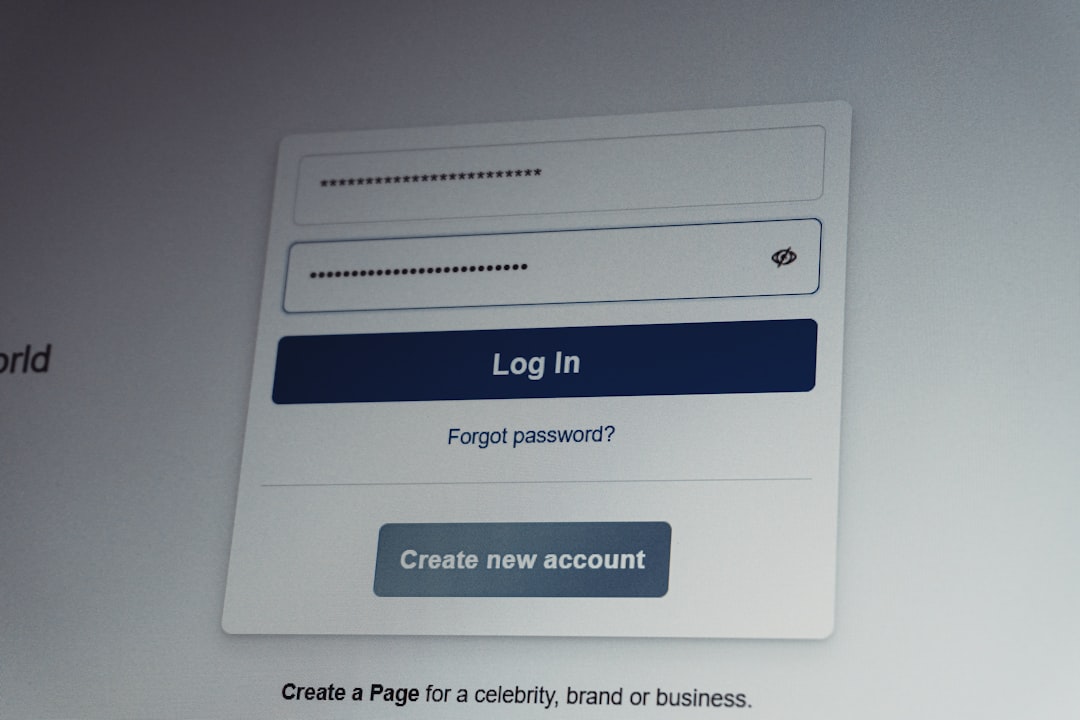
2. Enter Your Login Credentials
You will be prompted to enter:
- Registered email address
- Password
Ensure that your credentials are entered accurately, paying attention to capitalization and spacing.
3. Use Single Sign-On (SSO) If Available
Many districts enable integration with services such as Google or Microsoft. If this option is available to you:
- Select the appropriate authentication button.
- Log in using your institutional credentials.
- Grant necessary permissions if prompted.
This method simplifies access and reduces password fatigue.
4. Enable Secure Access Features
If available, activate multi-factor authentication for an added layer of account security. This step is especially important when accessing sensitive planning data from shared networks.
Account Setup and First-Time Login
For educators using Planbook for the first time, initial account configuration is essential. After receiving an invitation from your school or purchasing a subscription independently, follow these steps:
- Click on the account activation link sent to your email.
- Create a secure password that meets security requirements.
- Set up your profile, including school, grade level, and subject area.
- Choose applicable curriculum standards.
Proper setup ensures that lesson templates, standards, and scheduling tools are aligned to your professional needs.
Troubleshooting Login Issues
Even reliable platforms may occasionally present login challenges. Below are common issues and recommended solutions:
Forgotten Password
If you cannot remember your password:
- Select the Forgot Password link on the login screen.
- Enter your registered email address.
- Follow the reset instructions sent to your inbox.
Incorrect Email Address
Ensure that you are using the same email associated with your district or account registration. Contact your administrator if unsure.
Browser Compatibility Problems
Planbook generally supports modern browsers such as Chrome, Edge, and Firefox. If you encounter issues:
- Clear your browser cache.
- Update your browser to the latest version.
- Disable extensions that may interfere with login processes.
District Restrictions
Some schools implement firewall settings or IP limitations. If access is blocked, consult your IT department for assistance.
Once logged in successfully, you will be directed to the main dashboard. This is the command center for all lesson planning activities.
The dashboard typically includes:
- Calendar View: Weekly and monthly layouts of scheduled lessons
- Classes Section: Organized by subject and grade level
- Standards Alignment Tools: Integration with district or state standards
- Template Management: Customizable lesson formats
- Sharing Options: Collaboration with colleagues
Becoming familiar with the layout improves efficiency and reduces planning time.
Accessing Lesson Planning Tools
Planbook’s strength lies in its integrated tools, which allow educators to structure lessons methodically and consistently.
1. Creating a New Lesson Plan
To create a lesson:
- Select the date and class.
- Click on the designated planning cell.
- Enter the lesson title and objectives.
- Add materials, activities, and assessments.
You can duplicate lessons for recurring topics, saving time in long-term planning.
2. Aligning with Standards
Planbook allows educators to attach standards directly to each lesson. Simply:
- Search by keyword or code.
- Select relevant standards.
- Attach them to the lesson entry.
This feature is invaluable during evaluations or curriculum audits.
3. Customizing Templates
Teachers can design reusable templates that fit their instructional approach. Templates may include:
- Learning objectives
- Instructional strategies
- Differentiation notes
- Assessment criteria
- Homework assignments
Consistency across lessons fosters organization and instructional clarity.
4. Importing and Sharing Plans
Planbook supports content import and export, enabling collaboration among grade-level teams. You may:
- Share specific lessons with colleagues
- Provide view-only access to administrators
- Export plans for offline documentation
This streamlined collaboration enhances curriculum consistency across departments.
Mobile and Remote Access
Modern educators require flexibility. Planbook’s cloud-based system ensures that lesson planning is not confined to school premises. Teachers can access their accounts from:
- Desktop computers
- Laptops
- Tablets
- Mobile devices via supported browsers
To maintain security when working remotely:
- Avoid public Wi-Fi when possible.
- Log out after each session.
- Use strong passwords and change them periodically.
Best Practices for Secure and Efficient Use
Access alone does not guarantee productivity. Consider the following best practices:
Maintain Consistent Updates
Set aside weekly time to update your lesson plans. Avoid waiting until the last minute.
Organize by Units
Divide lessons into logical units to improve clarity and retrieval.
Back Up Critical Plans
Though cloud storage is reliable, periodic exports add another layer of security.
Engage in Collaborative Planning
Sharing and reviewing lesson plans with peers improves instructional quality and professional growth.
Administrative and Evaluation Advantages
From an administrative perspective, Planbook login access allows supervisors to monitor instructional alignment. This transparency supports:
- Curriculum compliance
- Teacher evaluations
- Accreditation requirements
- Substitute teacher preparedness
Because lesson plans are stored in a structured digital format, administrators can quickly review documentation without requiring physical binders or manual submissions.
Final Thoughts
Planbook provides a dependable and secure platform for teachers to manage lesson planning in an organized and standards-aligned manner. By understanding the login process, establishing secure credentials, and mastering dashboard navigation, educators can maximize the platform’s effectiveness. Its cloud accessibility, customizable templates, and collaboration tools support both daily instruction and long-term curriculum management.
For teachers committed to professionalism and instructional excellence, mastering Planbook login and lesson planning tools is not merely a technical necessity—it is a strategic advantage in today’s digital education environment.


