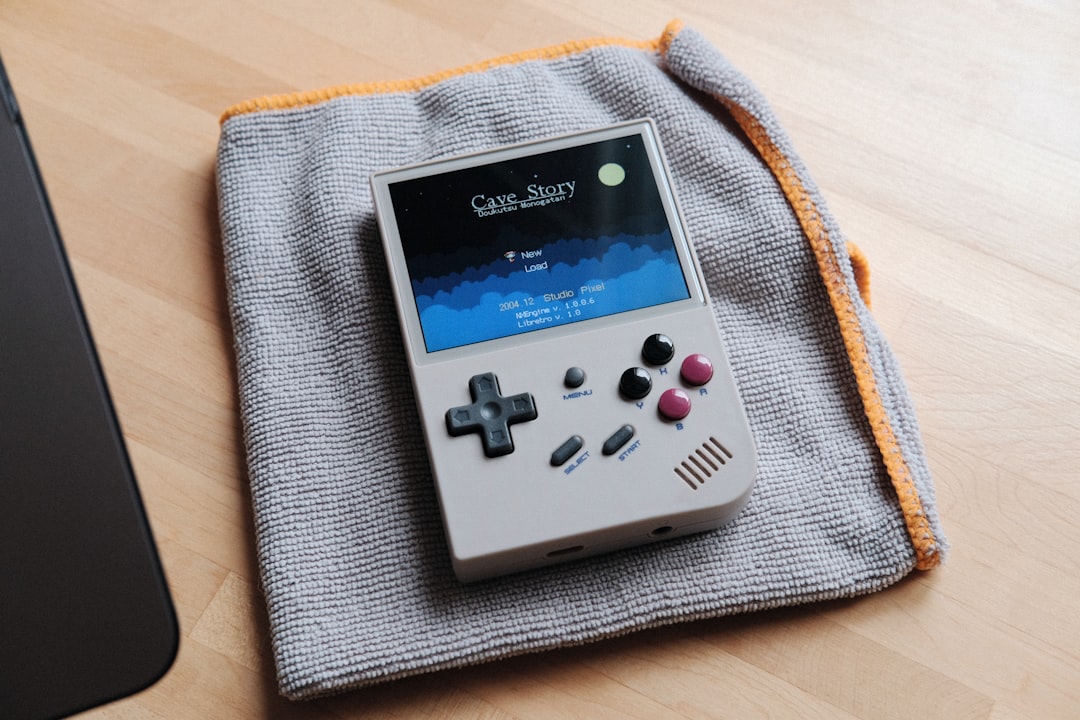
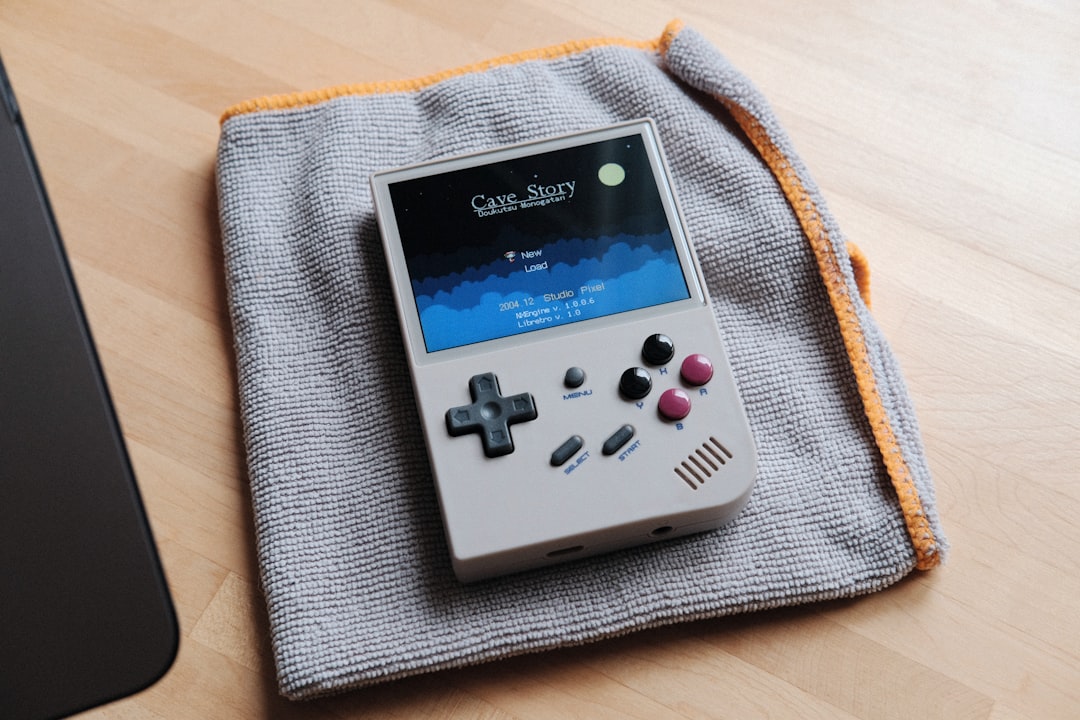
When your Miyoo handheld suddenly stops loading games, freezes on boot, or crashes back to the menu, it can be frustrating—especially if everything worked fine yesterday. Fortunately, most Miyoo loading issues are caused by common, fixable problems such as corrupted SD cards, incorrect firmware, file structure errors, or incompatible ROMs. With a systematic approach, you can diagnose and fix the issue quickly without risking your saved data.
TLDR: Most Miyoo game loading problems are caused by SD card corruption, bad ROM files, or improper firmware setup. Back up your SD card immediately, check the file structure, and reformat using the correct settings if necessary. Verify ROM compatibility and reinstall firmware only as a last resort. Following the steps below will resolve the majority of loading issues safely and efficiently.
Step 1: Identify the Exact Problem
Before attempting repairs, determine how your Miyoo is failing. Common symptoms include:
- Games not appearing in the list
- Black screen when launching a game
- Device stuck on boot logo
- Random crashes during gameplay
- “No SD Card” message
Each symptom points to a slightly different root cause. For example, games that don’t appear often indicate incorrect folder placement, while boot loops typically suggest firmware or SD corruption.
Step 2: Back Up Your SD Card Immediately
Before making changes, remove the SD card and insert it into your computer. Copy all files to a backup folder.
Why this matters:
- Many Miyoo devices ship with low-quality stock SD cards.
- Repeated failed boots may signal early card corruption.
- You may permanently lose save data if the card fails mid-repair.
If your computer cannot read the SD card, try a different card reader. If it still fails, you may need recovery software—but often replacement is the safer choice.
Step 3: Check for SD Card Corruption
The majority of Miyoo loading problems stem from corrupted file systems.
Signs of corruption include:
- Missing folders
- Files renamed with random characters
- Games present but not launching
- System extremely slow when browsing menus
Run a Disk Check
On Windows:
- Right-click the SD card in File Explorer
- Select Properties > Tools
- Click Check
On macOS:
- Open Disk Utility
- Select the SD card
- Click First Aid
If errors are found and fixed, safely eject the card and test your Miyoo again.
Step 4: Reformat the SD Card Properly
If errors persist, reformatting is often the fastest fix. However, formatting must be done correctly or the Miyoo will not recognize the card.
Recommended format settings:
- File system: FAT32
- Allocation unit size: Default
- MBR partition scheme
Many operating systems cannot format large SD cards (64GB+) to FAT32 by default, so you may need a dedicated formatter.
SD Card Formatting Tool Comparison
| Tool | Best For | Ease of Use | Reliability |
|---|---|---|---|
| SD Card Formatter | Quick standard formatting | Very Easy | High |
| GUIFormat | Formatting large SD cards to FAT32 | Easy | High |
| Disk Utility (Mac) | Mac users basic formatting | Moderate | Medium |
| Windows Built in Tool | Basic checks and small cards | Very Easy | Medium |
After formatting:
- Reinstall official firmware files
- Restore your ROM folders
- Test before copying back all content
Step 5: Verify ROM File Structure
Incorrect folder placement is another common cause of games not loading.
Your ROMs must be:
- Inside the correct system folder (e.g., GBA, SNES, PS)
- Properly named without unusual characters
- Placed in the ROM directory specified by your firmware
For example:
SD Card
 └── Roms
     ├── GBA
     ├── SNES
     ├── PS
A misplaced folder—even by one level—can prevent games from appearing.
Important: Compressed formats may not work for every emulator. If games fail to launch, try extracting them into standard formats supported by your system.
Step 6: Confirm Firmware Integrity
If your Miyoo is stuck on the boot screen or behaves erratically even after reformatting, firmware may be damaged.
When to suspect firmware issues:
- Device won’t pass startup logo
- Menu constantly crashes
- Screen flickers during boot
Reinstalling Firmware
- Download the correct firmware version for your specific Miyoo model.
- Follow the official installation procedure carefully.
- Ensure the SD card is properly formatted before copying firmware files.
Never interrupt firmware installation. Doing so can permanently brick the device.
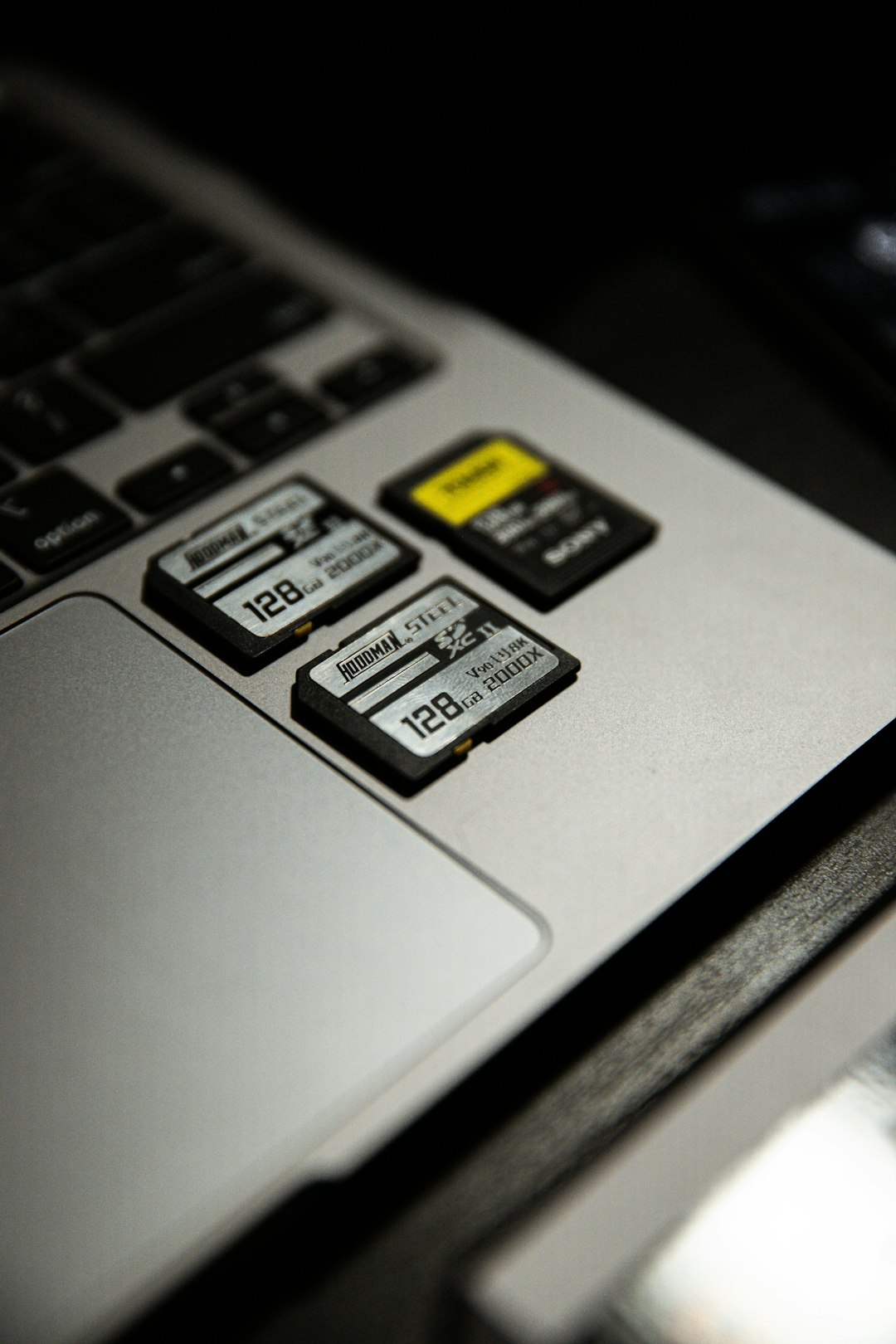
Step 7: Replace the Stock SD Card
This cannot be emphasized enough: many Miyoo units ship with extremely low-quality SD cards.
Common stock SD issues:
- Early data corruption
- Slow read speeds
- Sudden total failure
Upgrading to a reputable, high-quality microSD card often resolves persistent loading issues permanently.
Procedure:
- Purchase a reliable microSD (64GB–128GB recommended).
- Format to FAT32.
- Install firmware.
- Copy ROMs and saves.
Many users report that replacing the stock card is the single most effective long-term fix.
Step 8: Check for Overloaded Storage
If your SD card is nearly full, performance problems can appear.
Keep at least:
- 10–15% free space for optimal performance
An overloaded card can cause slow menu loading and crashing games.
Step 9: Rule Out Hardware Issues
If none of the above steps work, hardware may be involved.
Possible hardware problems:
- Loose SD card slot
- Defective motherboard
- Battery-related voltage issues
Try:
- Gently reseating the SD card
- Testing with a different card entirely
- Charging fully before booting
If the device still fails consistently, professional replacement may be necessary.
Common Mistakes to Avoid
- Formatting without backing up saves
- Using the wrong firmware version
- Removing SD card while powered on
- Interrupting firmware installation
A careful, methodical approach prevents most long-term damage.
When to Seek Advanced Help
If your Miyoo:
- Will not power on at all
- Fails after confirmed correct firmware install
- Shows persistent graphical glitches
You may be facing deeper hardware failure. In these cases, community forums or manufacturer support are preferable to repeated firmware attempts.
Final Thoughts
Miyoo game loading issues are almost always solvable. In the majority of cases, the problem traces back to the SD card—either corruption, improper formatting, or poor quality hardware. By backing up your data, formatting correctly, verifying file structure, and reinstalling firmware only when necessary, you can restore full functionality quickly and safely.
The key is to approach the issue systematically rather than randomly reinstalling files. With the steps outlined above, you can fix your Miyoo fast—and prevent the same problem from happening again.


