
Modern devices rely on a delicate balance between software and hardware to deliver performance, efficiency, and responsiveness. One feature that often sparks debate is hardware acceleration. It appears in web browsers, video editing tools, operating systems, gaming platforms, and even everyday apps. Yet many users are unsure whether they should leave it enabled or turn it off. The answer is not universal; instead, it depends on hardware capabilities, software design, and the user’s specific needs.
TLDR: Hardware acceleration is generally better when turned on because it shifts demanding tasks from the CPU to more specialized components like the GPU, improving performance and efficiency. However, it can sometimes cause compatibility issues, glitches, or instability on older or poorly optimized systems. Turning it off may resolve crashes or visual errors but can reduce speed and responsiveness. The best setting depends on the device, workload, and software environment.
Understanding Hardware Acceleration
Hardware acceleration occurs when software delegates certain computing tasks to specialized hardware components instead of relying solely on the central processing unit (CPU). The most common example is the use of a graphics processing unit (GPU) to handle visual rendering tasks.
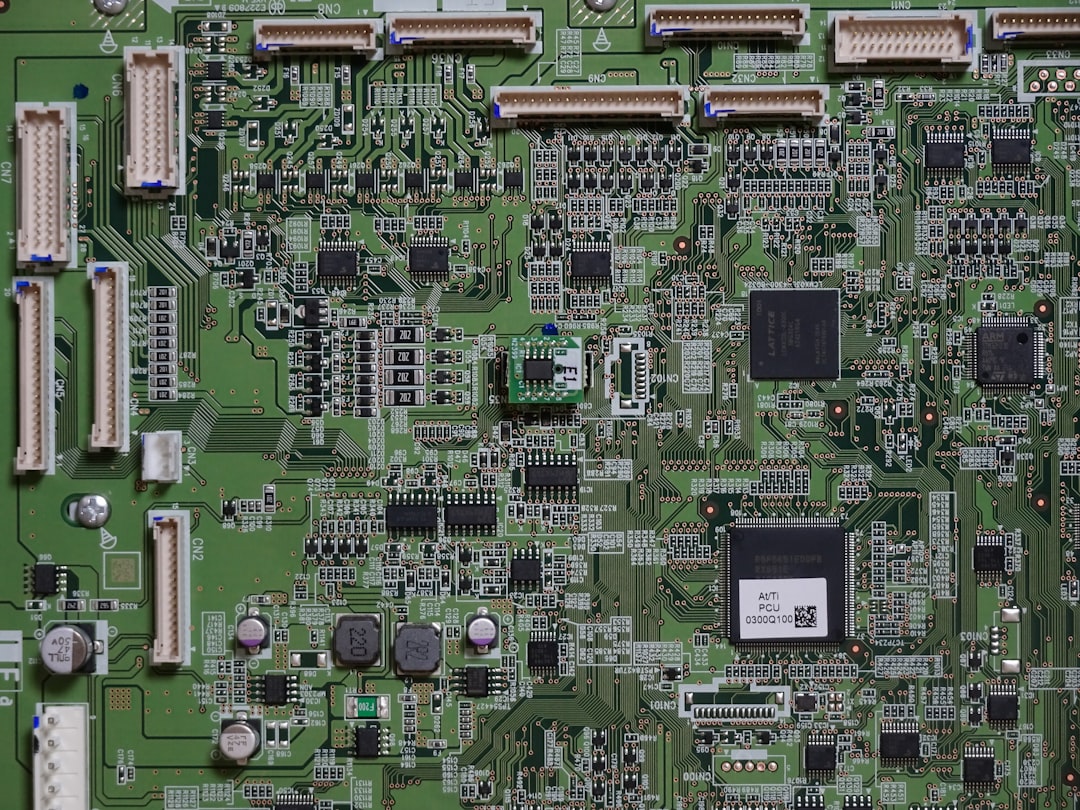
Unlike the CPU, which is designed to handle general-purpose tasks, a GPU excels at parallel processing. This makes it highly efficient for rendering graphics, decoding video streams, encrypting data, and even running artificial intelligence computations. By offloading these specific tasks, the system can often operate more smoothly and efficiently.
Hardware acceleration is commonly used in:
- Web browsers for rendering web pages and videos
- Video editing software for encoding and playback
- Gaming applications for rendering 3D graphics
- Streaming services for video decoding
- Operating systems for UI animations and effects
Benefits of Turning Hardware Acceleration On
For most modern systems, enabling hardware acceleration provides clear advantages. These benefits stem from distributing workloads more efficiently between components.
1. Improved Performance
When hardware acceleration is enabled, tasks such as video playback and graphic rendering are handled by components optimized for those jobs. This leads to:
- Faster rendering times
- Smoother animations
- Higher frame rates in games
- Reduced lag in multimedia applications
For example, high-resolution video playback in a browser can stutter when handled solely by the CPU. With hardware acceleration enabled, the GPU takes over decoding duties, providing smoother playback with fewer dropped frames.
2. Reduced CPU Usage
Offloading tasks helps free CPU resources for other processes. This improves multitasking capabilities and may enhance overall system responsiveness.
In laptops and mobile devices, lower CPU strain can also reduce overheating and improve energy efficiency during demanding graphical workloads.
3. Enhanced Visual Quality
Graphics cards are purpose-built for rendering. With acceleration enabled, users often experience better visual effects, smoother transitions, and improved resolution scaling.
Creative professionals working with design tools, 3D applications, or video editors especially benefit from GPU acceleration. Rendering previews, applying filters, and exporting footage become significantly faster.
When Hardware Acceleration Might Be Better Off
Despite its advantages, hardware acceleration is not flawless. In certain situations, turning it off can resolve specific technical issues.
1. Compatibility Problems
Older GPUs or outdated drivers may not fully support modern acceleration features. This can result in:
- Screen flickering
- Graphical artifacts
- Application crashes
- Black screens during video playback
Disabling hardware acceleration can serve as a quick troubleshooting step when such issues arise.
2. Driver Instability
GPU drivers are complex and occasionally contain bugs. When acceleration triggers crashes or freezes, turning it off may stabilize the application until drivers are updated.
3. Virtual Machines and Remote Environments
In some remote desktop sessions or virtual machine setups, GPU acceleration may not function correctly. Software rendering may provide more predictable performance in these scenarios.

4. Battery Considerations
While hardware acceleration can reduce CPU load, certain GPU operations increase power consumption. On lightweight tasks, such as simple browsing, disabling acceleration might marginally extend battery life on specific devices.
Performance Comparison: On vs. Off
| Factor | Hardware Acceleration On | Hardware Acceleration Off |
|---|---|---|
| Video Playback | Smooth, high resolution, fewer dropped frames | May stutter at higher resolutions |
| CPU Usage | Lower CPU load | Higher CPU usage |
| System Stability | Depends on drivers and GPU support | Often more stable on older systems |
| Gaming | Essential for high performance | Poor frame rates |
| Troubleshooting | May cause visual bugs if drivers are faulty | Useful diagnostic step |
Impact on Different Use Cases
Web Browsing
Most modern browsers enable hardware acceleration by default. It enhances video playback, page rendering, and interactive web applications. Unless graphical glitches appear, it is generally better left on.
Gaming
For gaming, hardware acceleration is not optional; it is fundamental. Disabling it effectively forces the CPU to manage graphical workloads, drastically reducing performance.
Video Editing and Content Creation
Creative workflows benefit enormously from hardware-enabled encoding and decoding. Export times can decrease dramatically when GPU acceleration is enabled.
Office and Productivity Tasks
For simple tasks such as document editing or spreadsheet management, the difference may be minimal. In rare cases of interface glitches, disabling acceleration can improve stability.
How to Decide
The decision should be based on practical testing rather than assumptions. A user can evaluate performance by:
- Monitoring CPU and GPU usage in task manager tools
- Comparing application responsiveness
- Checking for visual anomalies
- Updating graphics drivers before changing settings
If performance improves and no graphical issues appear, hardware acceleration should remain enabled. If unexplained crashes or artifacts occur, temporarily disabling it can help diagnose the issue.
Common Myths About Hardware Acceleration
Myth 1: It always improves performance.
Reality: It improves performance only when hardware and drivers are properly optimized.
Myth 2: It damages hardware.
Reality: Properly functioning acceleration does not harm components; GPUs are designed to handle such workloads.
Myth 3: It is only for gaming.
Reality: Many everyday applications rely on GPU acceleration for smooth functionality.
Final Verdict
In most modern computing environments, hardware acceleration is better left on. It allows specialized hardware to perform tasks more efficiently, enhancing speed, responsiveness, and visual quality. However, it is not universally perfect. Older systems, outdated drivers, or specific software conflicts may make disabling it a useful troubleshooting technique.
Ultimately, hardware acceleration is neither inherently better on nor off. It is a tool designed to optimize performance when conditions are right. The optimal setting depends on the balance between system capability, driver stability, and application demands.
Frequently Asked Questions (FAQ)
1. Does hardware acceleration make a computer faster?
It can make certain tasks faster, particularly graphics rendering and video playback. It does not necessarily speed up all aspects of the system.
2. Should hardware acceleration be on in browsers?
Yes, in most cases. It improves video streaming quality and page rendering performance. It should only be disabled if graphical glitches or crashes occur.
3. Can hardware acceleration cause crashes?
Yes, especially with outdated or incompatible GPU drivers. Updating drivers often resolves such issues.
4. Does disabling hardware acceleration improve battery life?
Sometimes, but not always. It depends on workload and device architecture. The difference is often minimal.
5. Is hardware acceleration necessary for gaming?
Absolutely. Modern games rely heavily on GPU acceleration. Disabling it significantly reduces performance.
6. How can someone tell if hardware acceleration is working?
System monitoring tools can show GPU usage during tasks such as video playback or gaming. Increased GPU activity indicates acceleration is active.
7. Is it safe to toggle hardware acceleration on and off?
Yes. It is a software-level setting and can typically be changed without risk to hardware.


