
Typing special characters like the upside-down question mark (¿) can be a bit tricky if one isn’t familiar with keyboard shortcuts or device-specific methods. This inverted punctuation mark is commonly used in Spanish to denote the beginning of a question, appearing before the sentence as “¿Cómo estás?” for example. Fortunately, whether you’re using a Windows PC, Mac, smartphone, or tablet, there are several easy ways to type this mark regardless of your keyboard or system language.
TL;DR
To type an upside-down question mark (¿), Windows users can use the Alt code Alt + 0191, while Mac users can type Option + Shift + ?. On smartphones and tablets, simply hold down the question mark symbol to reveal the ¿ character. You can also use character maps, keyboard apps, or copy-paste as alternative methods. Knowing these shortcuts can help streamline writing in Spanish or multilingual communications.
What is the Upside-Down Question Mark?
The upside-down question mark is a punctuation mark used primarily in written Spanish. It signals the beginning of a question, complementing the regular question mark at the end of the sentence. This feature helps readers anticipate the intonation change required for question phrasing in Spanish.
For example:
¿Dónde está el baño? – “Where is the bathroom?”
This punctuation is grammatically essential in proper Spanish writing and adds clarity — especially in long or complex sentences. Therefore, being able to type it is crucial for anyone who writes in or works with the Spanish language.
How to Type an Upside-Down Question Mark on Different Devices
1. Windows PC
Windows allows users to input special characters using Alt codes. Here’s how you can type the upside-down question mark:
- Ensure that Num Lock is enabled on your numeric keypad.
- Hold down the Alt key.
- Type 0191 using the numeric keypad.
- Release Alt, and the character ¿ should appear.
Shortcut: Alt + 0191
On some laptop keyboards without a dedicated numeric keypad, you might need to use a virtual numeric pad or copy and paste the character directly.
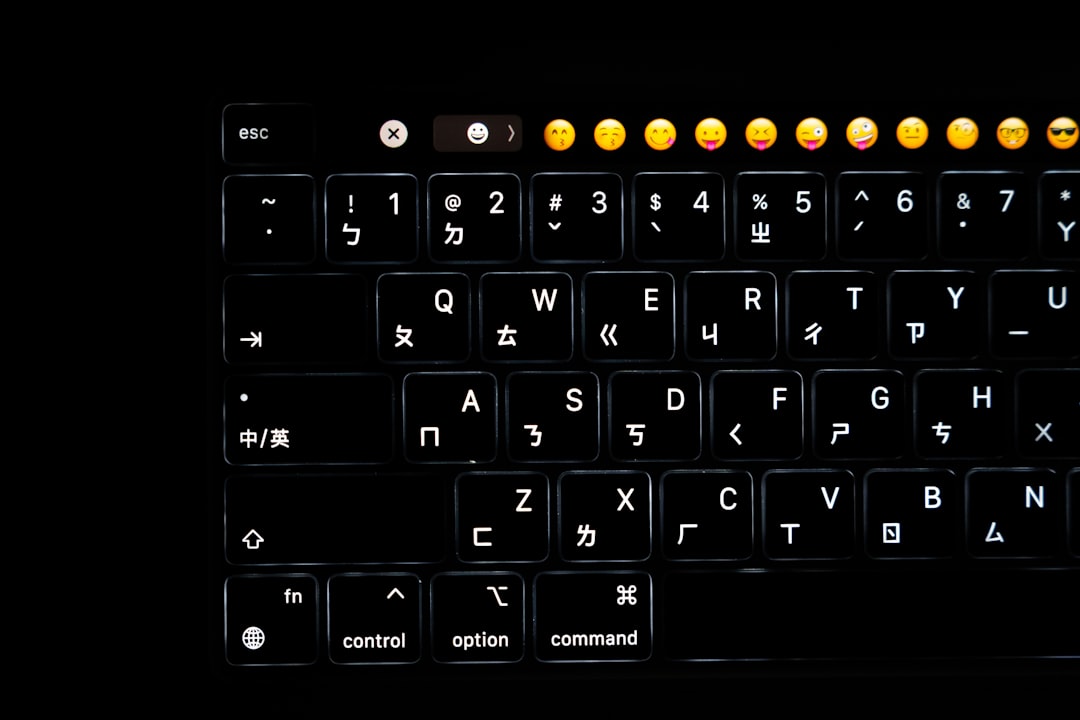
2. Mac (macOS)
Typing an upside-down question mark on a Mac is simple with a keyboard shortcut:
- Press Option + Shift + ?
That’s it! The upside-down question mark will appear wherever your cursor is placed. This method works across all applications in macOS, including Safari, Pages, and Google Docs.
3. iPhone and iPad (iOS)
iOS devices support multiple languages and special characters. Here’s how to get the ¿ on an iPhone or iPad:
- Open the keyboard in any text field (Messages, Notes, etc.).
- Press and hold the ? key.
- A small pop-up will appear with additional character options.
- Slide your finger to select ¿.
This method works in English and Spanish keyboards alike, making it incredibly user-friendly.
4. Android Phones and Tablets
Android keyboards, like Gboard or Samsung Keyboard, also allow access to special symbols:
- Tap in a text field to bring up the keyboard.
- Press and hold the ? key.
- Select ¿ from the pop-up options.
Alternatively, you can add a Spanish keyboard in your system settings, which includes both ¿ and other Spanish-specific characters like ñ.
5. Chromebook
Chromebooks offer a few different methods for typing special characters, depending on your settings:
- Use Ctrl + Shift + U then type 00BF and hit Enter.
- Or enable the US International Keyboard in your Chromebook’s settings, which makes it easier to type various punctuation marks used in other languages.
6. Using Character Maps and Online Tools
If you don’t want to memorize shortcuts, you can use built-in apps or online tools:
Windows Character Map:
- Search for Character Map in the Start Menu.
- Scroll through to find the upside-down question mark or type “Latin-1 Supplement” in the character set.
- Select and copy the symbol to paste it wherever needed.
Mac Character Viewer:
- Go to System Preferences > Keyboard.
- Enable “Show Keyboard and Emoji Viewers in menu bar.”
- Open the viewer from the menu and search for the symbol you want.

Online Character Tools:
- Websites like CopyPasteCharacter.com allow users to copy special characters easily.
- Simply click on the ¿ symbol and paste it into your document or message.
Other Tips for Typing ¿ More Easily
If you use the upside-down question mark frequently, here are a few additional suggestions:
- Change Your Keyboard Layout: Install a Spanish or International keyboard layout from your device’s language settings. This gives direct access to Spanish symbols.
- Use Text Shortcuts: On mobile or desktop, set up a text replacement (e.g. type “qqq” to automatically change it into “¿”).
- Clipboard Managers: Use a clipboard manager to keep frequently used symbols accessible with one click.
Conclusion
Whether you’re a Spanish speaker, student, educator, or language enthusiast, knowing how to type the upside-down question mark (¿) is essential in proper Spanish communication. With just a few shortcuts or tweaks in your keyboard settings, you can integrate it seamlessly into your writing, regardless of the device you’re using.
Thanks to the variety of methods explained above—keyboard shortcuts, character maps, and online utilities—typing this character is easier than ever.
FAQ
-
Q: What is the keyboard shortcut for ¿ on Windows?
A: Hold Alt and type 0191 on the numeric keypad. -
Q: How do I type ¿ on a Mac?
A: Press Option + Shift + ?. -
Q: Can I type an upside-down question mark on a smartphone?
A: Yes. On both iOS and Android, press and hold the question mark (?) to select the inverted version (¿). -
Q: Is it necessary to use ¿ in Spanish?
A: Yes, for proper grammar and clarity in Spanish writing, ¿ is placed at the beginning of all interrogative sentences. -
Q: What if my laptop doesn’t have a numeric keypad?
A: You can use Character Map (Windows), Character Viewer (Mac), or simply copy and paste the character from a website.


