When Claude projects suddenly go missing, it can disrupt productivity, create confusion across teams, and trigger concerns about data loss. Whether the issue stems from syncing errors, permission conflicts, or account mismatches, restoring workspace access is often possible with targeted troubleshooting. Understanding why projects disappear is the first step toward recovering them quickly and preventing the issue from happening again.
TLDR: Missing Claude projects are usually caused by account mismatches, permission changes, sync failures, or workspace configuration errors. Most cases can be resolved by verifying login credentials, rechecking workspace access, clearing cached data, or restoring from backups. Before assuming permanent loss, users should systematically apply six proven recovery fixes. With proper troubleshooting, workspace access can often be restored in minutes.
Why Claude Projects Sometimes Disappear
When users report that Claude projects have vanished, the issue rarely involves permanent deletion. Instead, it often relates to visibility, synchronization, or account-level configuration. Cloud-based workspaces rely on multiple moving parts: authentication tokens, workspace assignments, project permissions, and browser sessions. If any one of those components becomes misaligned, projects may appear to be missing.
Common root causes include:
- Logging into a different account than the one that owns the projects
- Expired browser sessions causing incomplete data retrieval
- Permission changes at the workspace or team level
- Synchronization delays in cloud environments
- Accidental filters hiding specific projects
Rather than panicking, users benefit from a structured recovery process.
Fix #1: Verify the Correct Account Login
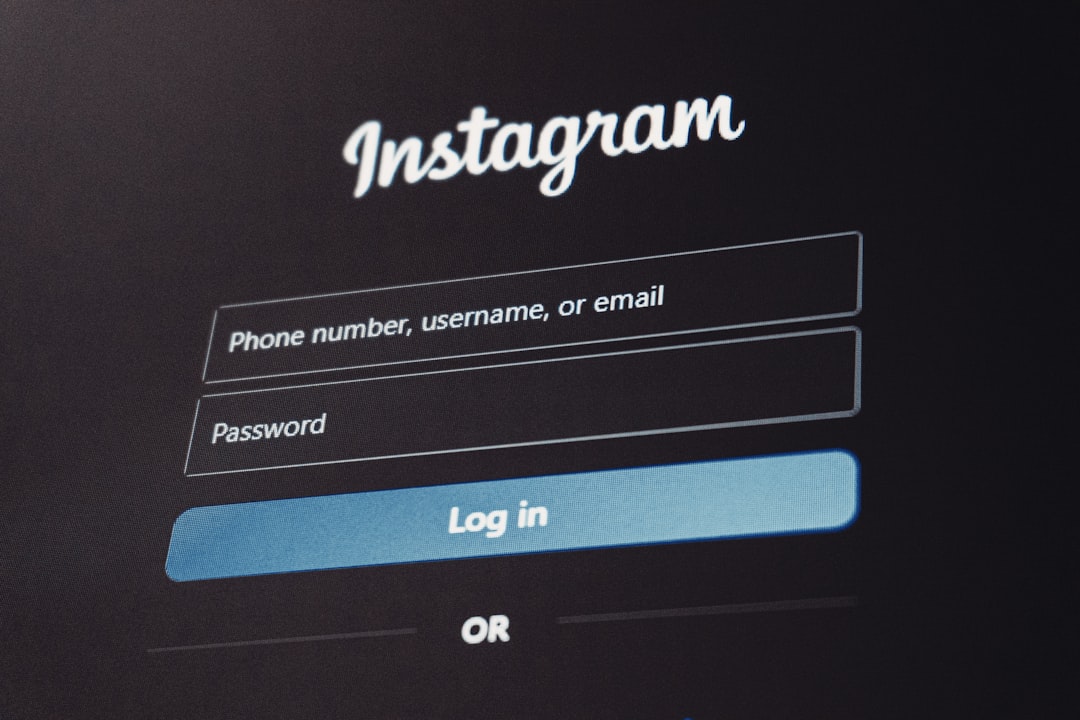
The most common reason Claude projects go missing is surprisingly simple: users are logged into the wrong account. Many professionals maintain multiple accounts for personal, enterprise, or testing purposes.
They should:
- Check the email currently logged in
- Log out and back in using the original email address
- Confirm whether Single Sign-On (SSO) was previously used
Enterprise users should ensure they are authenticating through the same identity provider (such as Google or Microsoft) that was originally used to create the workspace. Even a slight mismatch in authentication method can result in an empty dashboard.
Tip: If unsure which email was used, search inbox history for project notifications or workspace invitations.
Fix #2: Check Workspace Selection
Some users belong to multiple workspaces. If the active workspace changes, it may appear as if projects vanished when in reality, the wrong workspace is selected.
To resolve this:
- Locate the workspace dropdown in the dashboard
- Cycle through available workspace options
- Verify ownership or membership status
In collaborative environments, administrators may move projects between workspaces for organizational reasons. Users should confirm with team admins whether changes were recently made.
This simple adjustment restores visibility in a large percentage of reported cases.
Fix #3: Review Permission and Access Changes
If projects exist but cannot be seen, permission changes may be responsible. Administrators sometimes update access controls, remove team members, or modify project roles.
Users should:
- Contact workspace administrators
- Request reconfirmation of project access rights
- Ask whether role assignments were modified
Even read-only versus editor privileges can alter project visibility depending on system configuration. When access is restored, projects typically reappear immediately after refreshing the dashboard.
Fix #4: Clear Cache and Refresh the Session
Browser caching issues frequently cause incomplete dashboards to load. If cached session data expires or conflicts with new permissions, content may fail to display.
Recommended steps include:
- Log out of the account
- Clear browser cache and cookies
- Restart the browser
- Log back in
Alternatively, accessing the platform in an incognito or private browsing window can help determine if the issue is browser-related. If projects appear there, the problem likely stems from outdated cached data.
Important: Ensure that no restrictive browser extensions are blocking scripts or data loading.
Fix #5: Remove Filters and Sorting Restrictions
Sometimes projects are not gone—they are simply hidden behind filters. Advanced dashboards allow users to filter by date, status, tags, or collaborators. If a restrictive filter is active, only a subset of projects may be visible.
Users should:
- Reset all search filters
- Clear search bar queries
- Switch to “All Projects” view
- Sort by creation date or alphabetical order
This fix is particularly common when users transition between active and archived project views. Archived sections may contain projects mistakenly assumed deleted.
Fix #6: Investigate Backup and Sync Issues
In rare cases, synchronization failures occur during updates or outages. If projects were recently edited and suddenly disappeared, it may indicate sync interruption.
Troubleshooting steps include:
- Checking status pages for service disruptions
- Logging out and back in to refresh sync tokens
- Verifying internet stability
- Restoring from available backups if supported
Enterprise teams often enable version histories or periodic backups. If an accidental deletion occurred, administrators may be able to restore projects from earlier snapshots.
Users should also confirm whether projects were manually archived or deleted by collaborators.
When to Contact Support
If none of the six fixes restore access, it may be time to involve support. Before reaching out, users should gather:
- Email address associated with the workspace
- Workspace name
- Project titles
- Date and time access was lost
- Screenshots of the current dashboard view
Detailed reports accelerate investigation and increase the chances of quick resolution.
Preventing Future Workspace Access Issues
Prevention is just as important as recovery. Teams that adopt proactive measures reduce disruptions significantly.
Best practices include:
- Maintaining a centralized record of workspace ownership
- Limiting administrative changes to designated roles
- Regularly exporting or backing up critical data
- Documenting login methods (SSO vs. direct authentication)
- Training team members on project archiving versus deletion
Clarity around roles and workspace organization helps prevent accidental removals or confusion about project locations.
Common Misconceptions About Missing Projects
“The system deleted my project automatically.”
Automatic deletion without warning is extremely rare. Most apparent losses relate to access changes or filtering.
“If I cannot see it, it no longer exists.”
Visibility often depends on permissions and workspace selection.
“Refreshing the page is enough.”
While refreshing helps, deeper session resets or cache clearing may be required.
Understanding these misconceptions reduces panic and encourages methodical troubleshooting.
Conclusion
Claude projects rarely disappear permanently. In most situations, workspace access can be restored through account verification, permission checks, filter resets, browser troubleshooting, or synchronization fixes. By applying a structured six-step recovery approach, users dramatically increase their chances of regaining access quickly.
Teams that combine recovery knowledge with preventive policies experience fewer workflow interruptions. Missing projects may feel alarming at first, but with the correct steps, visibility is usually only a few clicks away.
Frequently Asked Questions (FAQ)
- 1. Can deleted Claude projects be restored?
If permanent deletion has not occurred and backups or version history exist, administrators may be able to restore them. In many cases, projects are archived rather than permanently removed. - 2. Why do I see an empty dashboard after logging in?
This usually indicates the wrong account login, incorrect authentication method, or selection of a different workspace. - 3. How do I know if permissions were revoked?
If projects suddenly disappear while others in the team still see them, access rights may have changed. Contact the workspace administrator for confirmation. - 4. Do browser extensions cause missing projects?
Yes. Script-blocking or privacy extensions may interfere with dashboard loading. Testing in incognito mode can help isolate the issue. - 5. Can syncing issues permanently erase projects?
Sync interruptions rarely cause deletion. They usually delay visibility. Logging out and back in typically refreshes the connection. - 6. What is the fastest recovery fix?
Verifying the correct account login and workspace selection resolves the majority of cases within minutes.


