When the OpenHardwareMonitorLib.dll not found error appears, it can prevent hardware monitoring software and related tools from launching correctly. This dynamic link library (DLL) file is a critical component used by various programs to monitor CPU temperatures, GPU usage, voltages, and other system metrics. If it becomes missing, corrupted, or blocked by Windows, users may encounter startup failures, crashes, or warning messages.
TLDR: The OpenHardwareMonitorLib.dll not found error is usually caused by missing system dependencies, corrupted files, or accidental deletion. Fixing it typically involves restoring the file, reinstalling the related program, running System File Checker, installing required Microsoft redistributables, or repairing Windows image files. By following structured troubleshooting steps, most users can resolve the issue without advanced technical knowledge.
Understanding why the error happens is the first step toward fixing it. In most cases, the issue stems from one of the following:
- Accidental deletion of the DLL file
- Corrupted Windows system files
- Missing Microsoft Visual C++ Redistributables
- File blocked by antivirus software
- Faulty application installation
Below are five reliable system file and dependency fixes that can restore functionality and eliminate the error.
1. Reinstall the Application That Uses OpenHardwareMonitorLib.dll
The simplest solution is often reinstalling the application that depends on the DLL file. When programs are improperly installed or partially removed, essential components like OpenHardwareMonitorLib.dll may disappear or become corrupted.

To reinstall properly:
- Open Control Panel and go to Programs and Features.
- Locate the software using OpenHardwareMonitorLib.dll.
- Select Uninstall and restart the computer after removal.
- Download the latest version from the official source.
- Install the program and restart again.
Reinstallation ensures that all necessary files are placed in the correct directories and properly registered in Windows.
2. Run System File Checker (SFC)
If the problem persists, Windows system files may be damaged. The System File Checker (SFC) tool scans for corruption and automatically repairs protected system files.
To run SFC:
- Press Windows + S and type cmd.
- Right-click Command Prompt and choose Run as Administrator.
- Type the following command and press Enter:
sfc /scannow
The scan may take several minutes. If corrupted files are found, Windows will attempt to repair them automatically. Once completed, restart the system and check if the error is resolved.
This fix works particularly well when the DLL issue originates from deeper system instability rather than a single missing file.
3. Use DISM to Repair Windows Image Files
If SFC cannot resolve the issue, the Deployment Image Servicing and Management (DISM) tool can repair the underlying Windows image that SFC relies on.
Follow these steps:
- Open Command Prompt as Administrator.
- Enter the following command:
DISM /Online /Cleanup-Image /RestoreHealth
DISM may take 10–20 minutes to complete depending on system speed. After it finishes:
- Restart the computer.
- Run sfc /scannow again for thorough repair.
This procedure resolves deeper corruption that might prevent essential DLL files from loading correctly.
4. Install or Repair Microsoft Visual C++ Redistributables
Many DLL files depend on Microsoft Visual C++ Redistributable packages. If these dependencies are outdated, missing, or corrupted, Windows cannot properly load OpenHardwareMonitorLib.dll.
To fix dependency issues:
- Open Control Panel > Programs and Features.
- Locate all installed Microsoft Visual C++ Redistributable entries.
- Select each one and click Repair.
- If repair is unavailable, uninstall and download the latest versions from Microsoft’s official website.
- Install both x86 and x64 versions if using a 64-bit system.
After installation, reboot the system. This step restores essential runtime libraries that many hardware monitoring tools rely on.
Important: Avoid downloading standalone DLL files from third-party websites. These files can be unsafe and may cause further compatibility problems.
5. Check Antivirus Quarantine and Restore the File
Sometimes antivirus programs mistakenly flag OpenHardwareMonitorLib.dll as a threat, especially if bundled with monitoring utilities that access system hardware data.
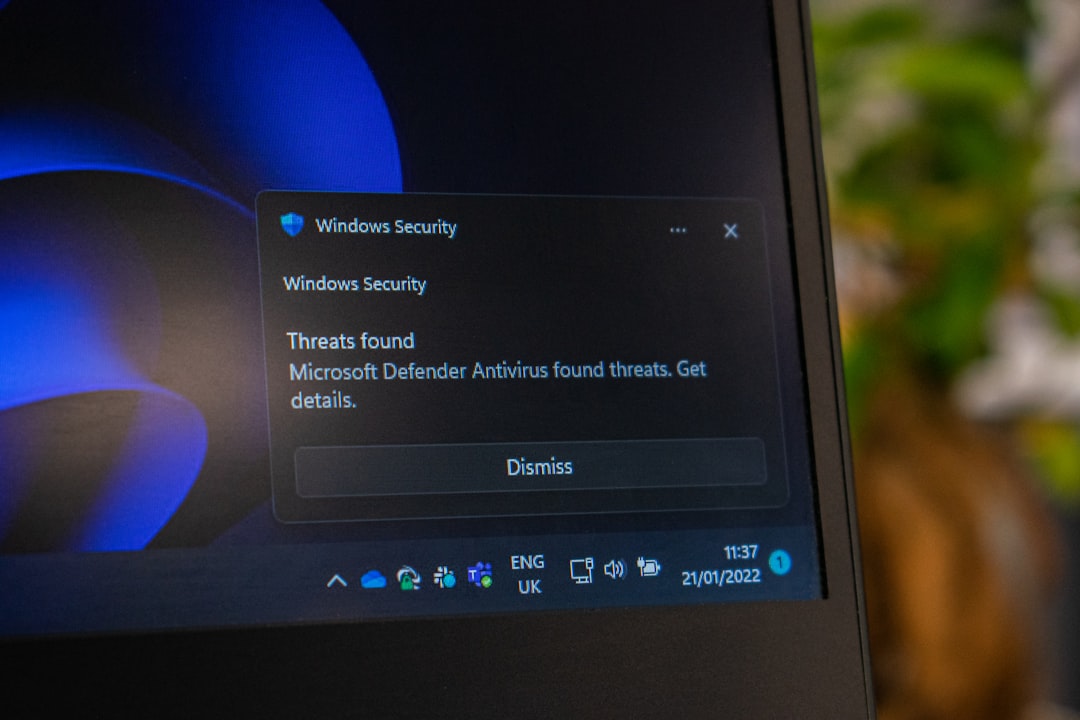
To check:
- Open your antivirus software.
- Navigate to Quarantine or Protection History.
- Look for OpenHardwareMonitorLib.dll entries.
- If found and verified safe, select Restore.
- Add the program folder to the antivirus exclusion list.
After restoring the file, restart the computer and relaunch the application.
Additional Troubleshooting Tips
If the main fixes do not resolve the issue, several supplementary steps can improve system stability:
- Perform a clean boot to check for software conflicts.
- Update Windows to ensure compatibility patches are installed.
- Scan for malware using Windows Security or other trusted tools.
- Check disk health with the chkdsk /f command.
Keeping Windows updated plays a crucial role in preventing DLL-related issues, as patches often resolve compatibility conflicts between libraries and applications.
Understanding Why DLL Errors Occur
DLL files function as shared libraries that multiple programs can use simultaneously. This shared structure improves system efficiency but also creates dependency chains. If one link in the chain breaks—due to corruption, deletion, or update conflicts—errors such as OpenHardwareMonitorLib.dll not found may appear.
Common technical causes include:
- Registry inconsistencies
- Incomplete software updates
- Hard drive file corruption
- Improper shutdown during installation
Addressing both the missing file and the system integrity ensures a stable, long-term solution rather than a temporary patch.
Preventing Future DLL Errors
While fixing the issue is important, prevention reduces the likelihood of recurrence. Best practices include:
- Regularly updating system drivers and software
- Keeping Windows automatic updates enabled
- Maintaining active but properly configured antivirus protection
- Avoiding manual deletion of program folders
- Creating restore points before major installations
Establishing these habits strengthens system resilience and minimizes dependency conflicts.
Frequently Asked Questions (FAQ)
-
What is OpenHardwareMonitorLib.dll?
It is a dynamic link library used by hardware monitoring applications to read and display CPU, GPU, temperature, voltage, and fan speed data within Windows systems. -
Is it safe to download OpenHardwareMonitorLib.dll from a DLL website?
No. Downloading DLL files individually from unofficial sources can expose the system to malware and compatibility issues. It is safer to reinstall the original application. -
Why does the error appear after a Windows update?
Major Windows updates may modify system files or change compatibility settings, which can affect DLL dependencies. Running SFC and DISM typically resolves post-update issues. -
Can malware cause this DLL error?
Yes. Malware infections can delete, alter, or replace DLL files. Running a full system scan is recommended if suspicious activity is noticed. -
Does reinstalling Windows fix the problem?
In extreme cases, yes. However, reinstalling Windows should be considered a last resort after trying SFC, DISM, dependency updates, and application reinstalls. -
How do I know if the DLL file is corrupted?
Repeated crashes, checksum mismatches, or SFC scan reports indicating file corruption may confirm that the DLL file is damaged.
By methodically applying these five system file and dependency fixes, most users can successfully resolve the OpenHardwareMonitorLib.dll not found error. Whether the issue stems from corrupted Windows files, missing runtime components, or antivirus interference, structured troubleshooting ensures reliable recovery and restores full hardware monitoring functionality.


