So, you dropped your Surface Laptop 3. Or maybe it fell off the couch. Now there’s a crack running across the screen like a spider web. It might still turn on. It might even work. But every time you look at it, that crack stares back at you. Don’t panic. This guide will walk you through the repair process in a simple and fun way.
TLDR: A cracked Surface Laptop 3 screen can be repaired at home, but it takes patience and the right tools. You’ll need heat, suction tools, and a replacement display. The repair is delicate because the screen is glued in place. If you’re not confident, professional repair might be the safer option.
First: Assess the Damage
Not all cracked screens are the same.
Ask yourself:
- Is the glass cracked but the display still works?
- Is there black bleeding or strange colored lines?
- Does the touch screen still respond?
- Is the laptop still usable with an external monitor?
If the image looks distorted or the touch function is dead, you likely need a full display assembly replacement. The Surface Laptop 3 does not separate the glass and LCD easily. They are fused together.
That means you’ll be replacing the entire screen unit.
Important: Know What You’re Getting Into
The Surface Laptop 3 is sleek. It’s thin. It’s beautiful. It’s also not easy to open.
The screen is:
- Strongly glued to the frame
- Very thin and fragile
- Connected with delicate display cables
This repair is rated as moderate to difficult. But don’t worry. With patience, you can do it.
Tools You’ll Need
Don’t start until you have everything ready.
- Replacement screen assembly (Surface Laptop 3 13.5 or 15 inch specific)
- Heat gun or hair dryer
- Suction cup
- Plastic pry tools
- Opening picks
- Torx screwdrivers
- Tweezers
- Isopropyl alcohol (90% or higher)
- Adhesive strips or display glue
Tip: Make sure you order the correct screen version. The 13.5-inch and 15-inch models are different.
Step 1: Power Down and Prepare
This is important.
- Shut down the laptop completely.
- Unplug the charger.
- Press and hold the power button for 10 seconds.
Work on a clean, flat surface. Good lighting helps. Take your time.
Step 2: Heat the Edges
The screen is glued to the frame. So first, you must soften the adhesive.
Use a:
- Hair dryer on high heat, or
- Heat gun on low setting
Move slowly around the edges. Heat for about 1–2 minutes per section.
Do not overheat. Too much heat can damage internal components.
Step 3: Create a Small Gap
Attach a suction cup near the edge of the screen.
Gently pull upward.
Insert a plastic opening pick into the tiny gap that forms.
Now slide the pick along the edge to cut through the adhesive.
Important:
- Only use plastic tools.
- Do not insert tools too deep.
- Avoid the camera area at the top.
This step takes patience. Go slow. Reapply heat if needed.
Step 4: Lift the Display Carefully
Once the adhesive is loose, gently lift the display upward from one side.
Do NOT yank it off.
The display is still connected by cables.
Lean it carefully forward like opening a book.
Step 5: Disconnect the Battery
This step is crucial.
Before touching display connectors:
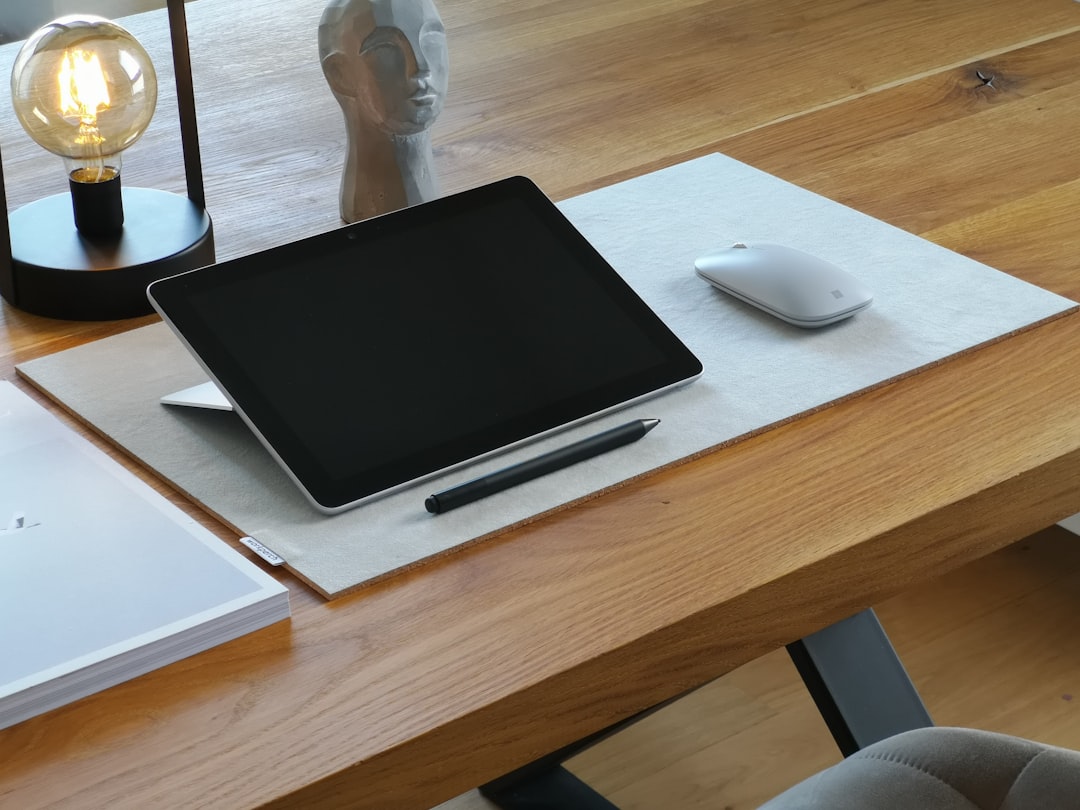
- Locate the battery connector.
- Use a plastic tool to disconnect it.
This prevents electrical damage.
Step 6: Disconnect the Display Cable
Now find the display connector cable.
It will be secured with:
- A metal bracket
- Small screws
Remove the screws. Lift the bracket. Then gently disconnect the cable.
The screen should now be fully detached.
Step 7: Clean the Frame
You’ll likely see leftover adhesive around the edges.
Clean it carefully using:
- Isopropyl alcohol
- A microfiber cloth
- Plastic scraping tool
The surface must be smooth and clean before installing the new screen.
Step 8: Test the New Screen First
Do not glue it yet.
First:
- Reconnect the display cable
- Reconnect the battery
- Power on the laptop
Check:
- Display clarity
- Touch response
- Brightness control
- Camera functionality
If everything works, power it off again. Disconnect the battery once more.
This test can save you big headaches later.
Step 9: Apply Adhesive
Now you’re ready to seal it.
Use:
- Pre-cut adhesive strips, or
- Thin double-sided display adhesive
Apply evenly around the edges. Avoid gaps.
Step 10: Install the New Screen
Reconnect:
- Display cable
- Secure bracket
- Reconnect battery
Carefully align the screen with the frame.
Press gently around the edges to secure the adhesive.
You can use light clamps or books to apply pressure for about 30–60 minutes.
Common Mistakes to Avoid
Here’s what often goes wrong:
- Overheating the panel
- Cracking the screen more during removal
- Forgetting to disconnect battery
- Using metal tools
- Applying uneven adhesive
Slow equals safe.
How Much Does It Cost?
Here’s a quick breakdown:
- Replacement screen: $150–$300
- Tool kit (if needed): $20–$40
- Professional repair: $350–$600
Doing it yourself can save money. But only if done correctly.
When to Choose Professional Repair
DIY is great. But sometimes it’s smarter to let a technician handle it.
Consider professional repair if:
- You’re not comfortable with heat and adhesives
- The laptop has additional internal damage
- You rely on it for work daily
- It’s still under warranty
Some repair shops even offer warranty on their work.
Extra Tips for Success
- Watch a full video guide before starting
- Take photos during disassembly
- Keep screws organized
- Work slowly and calmly
- Never force anything
If something feels stuck, more heat is usually the answer.
What If Only the Glass Is Cracked?
Many people ask this.
Sadly, on the Surface Laptop 3, you usually cannot replace just the outer glass. The glass and LCD are fused together.
That means full assembly replacement is required.
Trying to separate them often destroys the display completely.
Battery Drain or Flickering After Repair?
If you notice:
- Screen flickering
- Dim brightness
- Touch not responding fully
Then check:
- Display connector seating
- Adhesive pressing on cable area
- Driver updates in Windows
Sometimes it’s just a loose cable.
Final Thoughts
Fixing a cracked Surface Laptop 3 screen is not impossible. It just takes care and patience.
The design is glued and compact. That makes it trickier than older laptops. But if you follow each step and move slowly, you can bring your device back to life.
And let’s be honest.
There’s something very satisfying about fixing your own tech.
You save money. You learn new skills. And every time you look at that clear, beautiful screen again, you’ll know:
You did that.


