
Email is a vital part of our digital life. Whether you’re sending a message to a friend or replying to a work update, knowing how your email gets from point A to point B is pretty cool. This article breaks down the tech lingo behind email: IMAP, SMTP, and sockets. And don’t worry — we’ll keep it light and easy to digest!
TLDR:
Email works through special settings and pathways. IMAP helps you receive and manage email from a server. SMTP sends your messages out. And sockets are the tunnels your emails travel through. By understanding these, you can fix most email setup issues yourself!
What Are Sockets, IMAP, and SMTP Anyway?
Let’s kick things off with a quick vocabulary lesson:
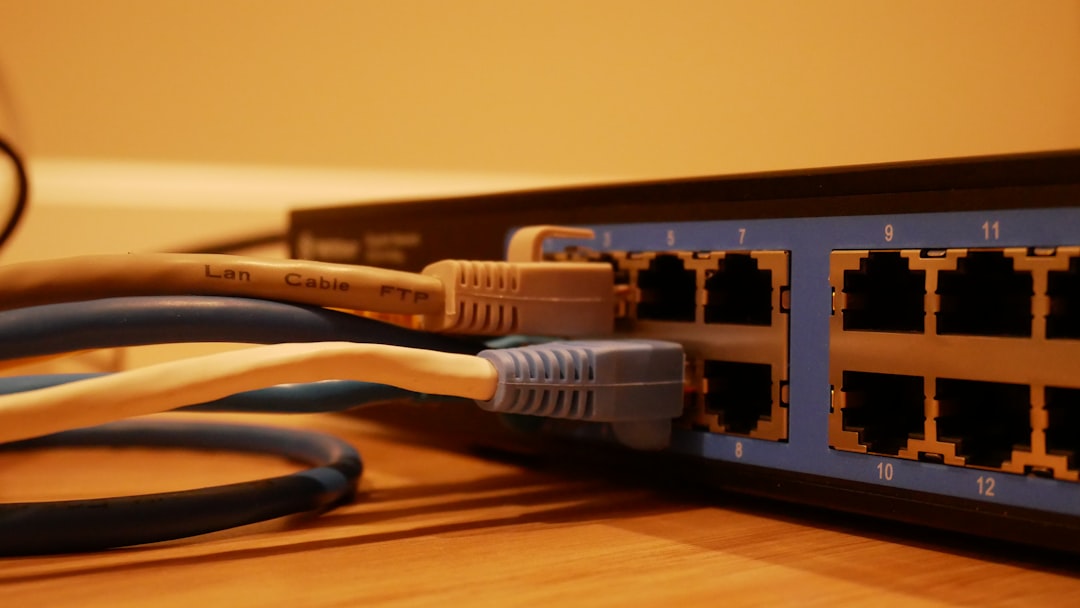
- Socket: It’s like a phone line between your device and a server. It connects your computer to the internet to send and receive data.
- IMAP: Short for Internet Message Access Protocol. This is how your email app reads messages from a server.
- SMTP: Short for Simple Mail Transfer Protocol. This is how your messages are sent out to others.
Think of IMAP as your inbox manager and SMTP as your mail carrier. The socket is the road they travel on.
Let’s Break it All Down
1. Sockets: The Quiet Heroes
A socket is a digital connection between two computers. When your email app talks to Gmail or Outlook’s servers, it creates a socket. It’s like a tunnel between your phone and a giant mailbox in the cloud. 💌
Sockets use something called a port. A port is like a specific door on the server. Each service has its own door (aka port number) to use. For example:
- IMAP: Port 143 or 993 (993 is secure)
- SMTP: Port 25, 465, or 587
Why so many? Some are older or more secure. We’ll talk about that in a bit.
2. IMAP: Your Email Access Tool
Imagine you have a mailbox that stays at the post office. Instead of taking the emails home, you just go there and read them. That’s IMAP!
IMAP keeps your emails on the server. So whatever you do on your phone or laptop syncs automatically. Delete a message on your phone? It’s gone on the computer too. Nice and tidy.
Typical IMAP settings look like this:
- IMAP Server: imap.your-email.com
- Port: 993 (use this for SSL encryption)
- Security: SSL/TLS
- Username: your full email (like user@example.com)
So whenever you open your email app, IMAP helps it grab new messages while keeping everything synced.
3. SMTP: Your Email’s Racing Car
Now if IMAP is your inbox manager, SMTP is in charge of getting the message out. It takes your email, pops it in its digital backpack, and delivers it to the other person’s mail server.
SMTP is a one-way path: out only. That’s why it works together with IMAP (which handles the “in” side of things).
A typical SMTP setting includes:
- SMTP Server: smtp.your-email.com
- Port: 465 for SSL or 587 for TLS (use these)
- Security: SSL or TLS
- Authentication: Yes, required
- Username: your full email again
That port 25 we mentioned earlier? It’s mostly blocked these days. Too many spam bots used it. Stick with 465 or 587 for best results.
Putting Them All Together
Let’s say you’re setting up your email on a new phone. Here’s what’s happening:
- Your app asks you for your IMAP and SMTP settings.
- You fill in the server names, ports, and login info.
- The phone opens a socket to both servers — one for sending, one for receiving.
- IMAP downloads your inbox so you can read messages.
- SMTP sends any new messages you write to the right recipients.
And just like that, your email is good to go!
Common Problems (and How to Fix Them)
Here are a few hiccups people often face and how to get back on track:
- Error: Can’t send email – Check your SMTP port. Make sure it’s set to 465 or 587.
- Error: Password refused – Double-check that you used your full email address as the username. Also, make sure caps lock isn’t on!
- Error: Server not found – Check server names. Try googling “your email provider SMTP settings” to confirm.
- Slow sync – Use port 993 for IMAP with SSL. It’s secure and usually faster.
Quick Reference Chart
| Setting | IMAP (Incoming) | SMTP (Outgoing) |
|---|---|---|
| Server | imap.your-email.com | smtp.your-email.com |
| Port (SSL) | 993 | 465 |
| Port (TLS) | 143 | 587 |
| Authentication | Yes | Yes |
Bonus Tips
- Use SSL or TLS wherever possible. These encrypt your data and keep your info safe.
- Double-check spelling in your settings — one typo can break everything!
- Some providers (like Gmail or Yahoo) need you to enable app passwords or allow less secure apps.
Wrapping It Up
Understanding IMAP, SMTP, and sockets might sound techy at first. But it’s really just about messages coming in, going out, and the pipes they travel through. Once you know which ports to use and where to point your email app, everything flows smoothly.
With this guide, you should be ready to handle any email setup like a pro. And the next time someone says “IMAP over a secured socket with SMTP relay,” you’ll be like, “Yeah, I got this.” 😎


